


Kindly stop all anti-virus / anti-malware program. Free anti-virus program such as AVAST, AVG, AVIRA etc, are known to interfere with the running of the program.
The installation setup can be obtained here (don’t use the previous version that you might have):
Downloads
Downloads
A clean uninstallation removes residual files from any previous installations and, if necessary, resets some Windows registry keys.
A clean uninstall may be necessary if:
- Keep getting errors while updating your software to new version
- The installation ended prematurely.
- ProtaStructure, ProtaSteel or ProtaDetails cannot be launch after installation.
PS2026 – Clean Uninstall and Reinstall Steps
- Uninstall ProtaStructure 2026 and ProtaSteel 2026 from Control Panel > Add or remove programs
- Please make sure you have cleaned the contents of the folders given below.
You need to make hidden folders visible as shown in below section - C:Program Files(x86)ProtaProtaStructure2026
- C:Users<UserName>AppDataRoamingProtaProtaStructureR9
- Select the installer and right-click > Run as Administrator.
- Restart Computer after installation.
PS2025 – Clean Uninstall and Reinstall Steps
- Uninstall ProtaStructure 2025 and ProtaSteel 2025 from Control Panel > Add or remove programs
- Please make sure you have cleaned the contents of the folders given below.
You need to make hidden folders visible as shown in below section - C:Program Files(x86)ProtaProtaStructure2025
- C:Users<UserName>AppDataRoamingProtaProtaStructureR8
- C:ProgramDataProtaProtaSteel 2025
- Select the installer and right-click > Run as Administrator.
- Restart Computer after installation.
PS2024 – Clean Uninstall and Reinstall Steps
- Uninstall ProtaStructure 2024 and ProtaSteel 2024 from Control Panel > Programs and Features.
- Please make sure you have cleaned the contents of the folders given below.
You need to make hidden folders visible as shown in below section - C:Program Files(x86)ProtaProtaStructure2024
- C:Users<UserName>AppDataRoamingProtaProtaStructureR7
- C:ProgramDataProtaProtaSteel 2024
- Select the installer and right-click > Run as Administrator.
- Restart Computer after installation.
PS2022 – Clean Uninstall and Reinstall Steps
- Uninstall ProtaStructure 2022 and ProtaSteel 2022 from Control Panel > Programs and Features.
- Please make sure you have cleaned the contents of the folders given below.
You need to make hidden folders visible as shown in below section - C:Program Files(x86)ProtaProtaStructure2022
- C:Users<UserName>AppDataRoamingProtaProtaStructureR6
- C:ProgramDataProtaProtaSteel 2022
- Select the installer and right-click > Run as Administrator.
- Restart Computer after installation.
PS2021 – Clean Uninstall and Reinstall Steps
- Uninstall ProtaStructure 2021, ProtaSteel 2021 and ProtaMeshgen from Control Panel > Programs and Features.
- Please make sure you have cleaned the contents of the folders given below.
You need to make hidden folders visible as shown in below section - C:Program Files(x86)ProtaProtaStructure2021
- C:Users<UserName>AppDataRoamingProtaProtaStructureR5
- C:ProgramDataProtaProtaSteel 2021
- Select the installer and right-click > Run as Administrator.
- Restart Computer after installation.

You only need to perform clean uninstallation if you encounter issues. For normal uninstalls, use the Control Panel in Windows.
Kindly consult technical consultant first if you were unsure about whether clean uninstallation would be able to resolve your issue.
Show Hidden Folder in Windows File Explorer
To delete some of the folders,
you need to make them visible from the menu.
you need to make them visible from the menu.
The visibility of the hidden files can be changed by going to
Control Panel > File Explorer Options > View > Show hidden files, folders, and drives.
Control Panel > File Explorer Options > View > Show hidden files, folders, and drives.
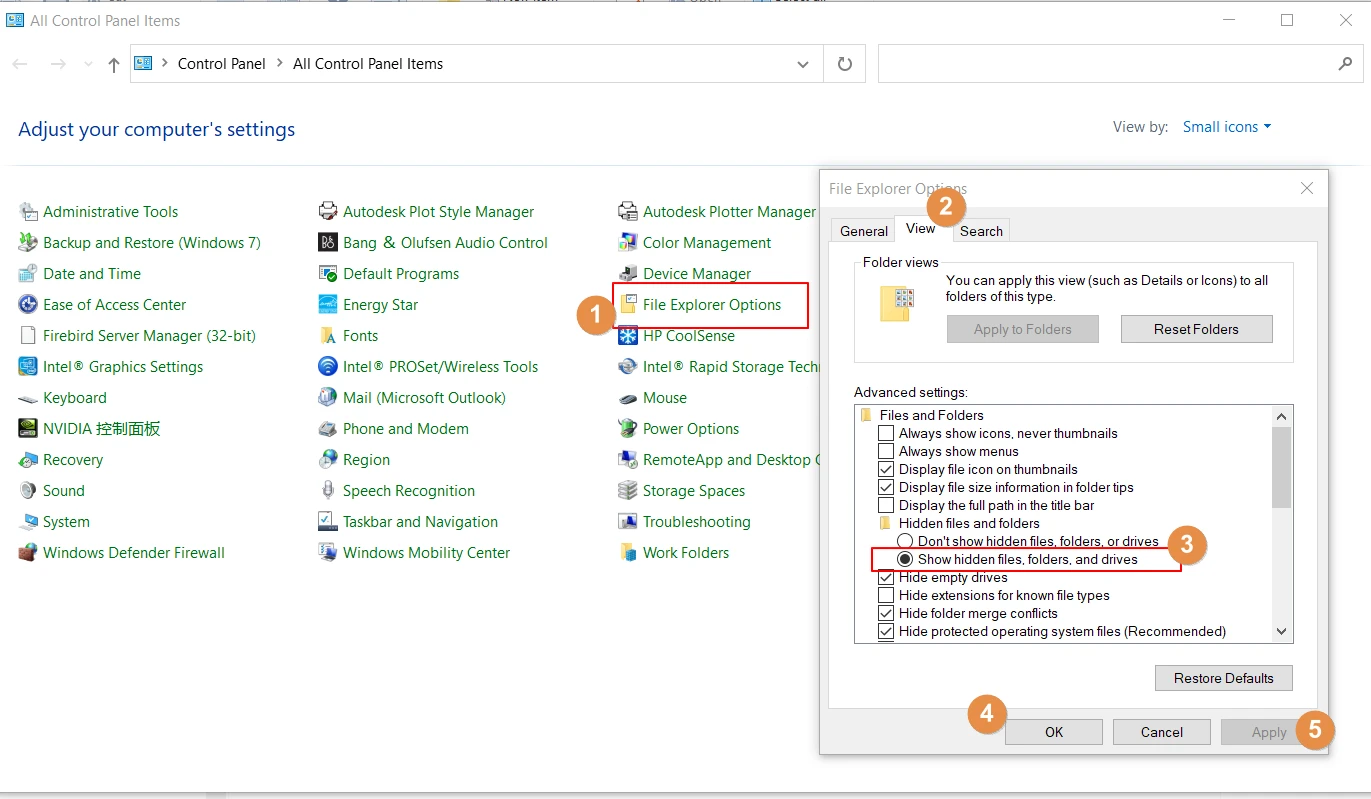
Alternatively, open any folder > View (tab) > tick on "Hidden Items" option.
