

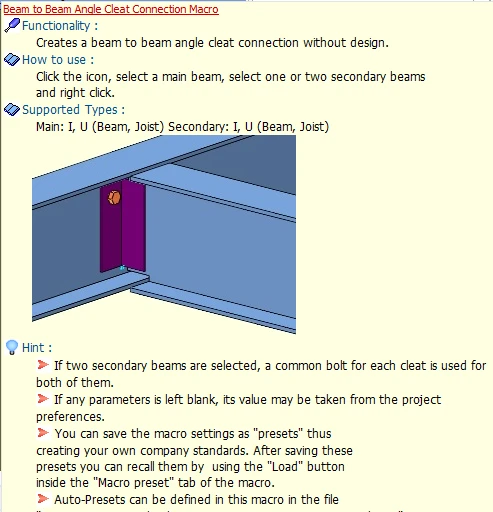
An Angle Cleat Connection can be created between beam & beam or beam and column. Placing the mouse cursor over the Angle Cleat Connection Macro will reveal the tool tip describing the scope and the steps of the macro
Angle Cleat (Beam – Column)
- Pick Angle Cleat connection icon under "Beam to Column Connection" section.
- Pick the column.
- Pick the beam.
- Right-click.
- The connection is created.

Connection will be auto created without right-click if two beams are being selected at step (3)

Angle Cleat (Beam – Beam)
- Pick Angle Cleat connection icon under "Beam to Beam Connection" section.
- Pick the Primary Beam.
- Pick the Secondary Beam.
- Right-click.
- The connection is created.
Connection will be auto created without right-click if two beams are being selected at step (3)


- Create the most appropriate View first before creating the connection. The same view & orientation will be used to produce the drawings. Click this topic for more details: Creating Views
- Press F9 on the joint to set the point of interest. The view will then rotate about the joint of interest.