

General
Pad footing detail drawing can be drawn using "Pad Footing Details". Unlimited numbers of pad footing can be generated with different display options on the same or different drawings.
The pad footing detail drawing is based on detail designed in ProtaStructure. Therefore, pad footings must be designed and saved before proceeding to ProtaDetails.
Navigation
- "Details" treeview context menu > Pad Footing Details > Select any pad footing > Right click > Draw (without any setting)
- Second method is to right click on Pad Footing Details > Draw pad footing in group/one by one
- Draw Pad Footing Details: Drawing pad footing in group with additional setting using Draw Details Dialogue (ie. insert into sheet, add quantity table, etc)
- Draw Pad Footing Details (One by One): Drawing pad footing one by one without additional setting
- Alternatively uses Detail Drawing Manager > Pad Footing Details
Draw Details – Pad Footing
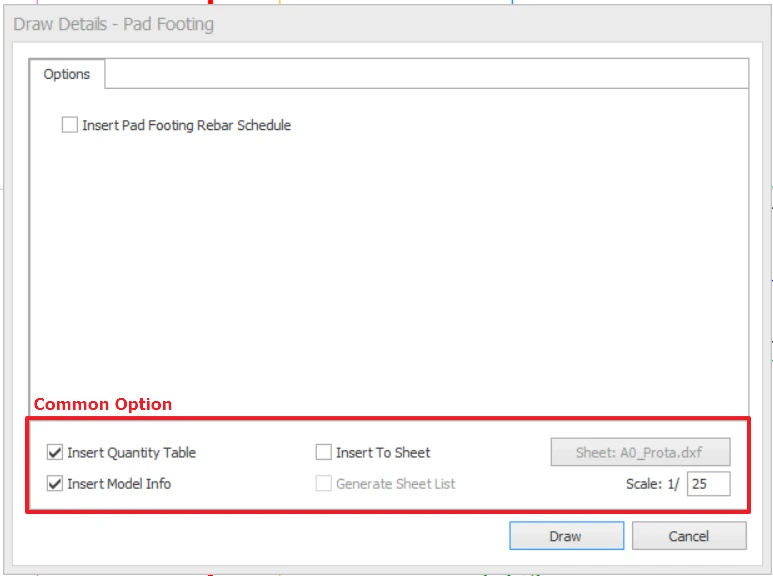
In "Draw Details – Pad Footing" dialogue consist of :
- Insert Pad Footing Rebar Schedule : Select this option to insert the rebar schedule along with the pad footing details drawing.
- Common Options : These setting can be found in all "Draw Details" dialogue. The common options allow to insert Sheet (Title block), quantity table, model info and adjust scale of drawing.
 For the detailed explanation of common options, kindly refer to Detail Drawing Manager : Common Options.
Pad Footing / Pile Cap Rebar Schedule
This table summarizes the foundation dimensions, associated columns and reinforcement quantities.
There is another method to create the rebar schedule:
- Launch ProtaDetails through ProtaStructure.
- Select the ProtaStructure tab and then select Pad Footing / Pile Cap Rebar Schedule command.
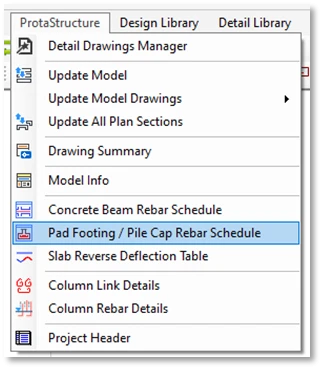
- Click onto the drawing to insert the rebar schedule.