This tab contains information about element type which is a very important parameter used in annotation which can be displayed in graphic editor or engineering drawings, element position and assembly number which may be used by steel detailing software.
Descriptions of the controls and items on the tab are given according to the number displayed next to that control or item.
| Item | Short Description | Detailed Description |
| 1 | A name for the element | This name can be used to identify an element. Name does not have to be unique. |
| 2 | Element Type | Element type is automatically assigned when the model is imported from ProtaStructure or when the steel element is created. This field cannot be modified. |
| 3 | Material | Material grade, i.e. steel grade or concrete grade. |
| 4 | Usage & Discipline | This is for filtering and drawing production purposes. This field cannot be modified. |
| 5 | Color | The color of the element can be changed by checking "User Custom Color" |
| 6 | Annotation | A annotation template should be selected to annotation an element. User must first create and save the annotation template. |
| 7 | Format Name for Welded Profiles | During SDNF export profile names of built up profiles made from welded plates are converted to special format |
| 8 | User Defined Text | These text can be used for annotation. |
| 9 | Preserve constructive changes during model reimport | If ticked, this will preserve the element position that has been last adjusted in ProtaSteel. Reimporting model from ProtaStructure will not change it’s current position in ProtaSteel. |
Preserve constructive changes during model re-import
There is a one-way data transfer from ProtaStructure to ProtaSteel. Adding and removing a new
member to the project must be done in ProtaStructure. In this case, the project must be saved and
closed in ProtaSteel, and necessary changes must be made in ProtaStructure.
If it is desired to keep the changes made before in ProtaSteel (e.g., member position & orientation),
the “Preserve constructive changes during model re-import” option must be marked.
In the General Definitions tab, the option “Preserve constructive changes during model re-import” is
by default checked.
member to the project must be done in ProtaStructure. In this case, the project must be saved and
closed in ProtaSteel, and necessary changes must be made in ProtaStructure.
If it is desired to keep the changes made before in ProtaSteel (e.g., member position & orientation),
the “Preserve constructive changes during model re-import” option must be marked.
In the General Definitions tab, the option “Preserve constructive changes during model re-import” is
by default checked.
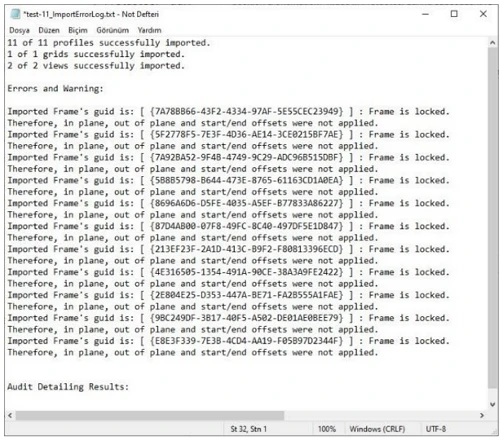
During the next import, the import log file
will show a warning :
“Imported Frame’s ID in *.cdf file[xxx]:
Frame is locked. Therefore, in plane, out
of plane and start/end offsets were not
applied.”
Ignore the above warning (log file) if you
want the member offsets to be retained in
ProtaSteel.
If this option is unticked (disabled), offsets
done in ProtaSteel will be discarded during
the next re-import from ProtaStructure.
will show a warning :
“Imported Frame’s ID in *.cdf file[xxx]:
Frame is locked. Therefore, in plane, out
of plane and start/end offsets were not
applied.”
Ignore the above warning (log file) if you
want the member offsets to be retained in
ProtaSteel.
If this option is unticked (disabled), offsets
done in ProtaSteel will be discarded during
the next re-import from ProtaStructure.