

Overview
Points are the primary snap objects in ProtaSteel. They are used for creating the geometry. Although points are created automatically at grid intersection points and at the ends of each frame element, sometimes it is necessary to create additional points to model complicated geometries. For this, the program provides a number of point creation commands.
Point creation commands are accessible from Edit tab.
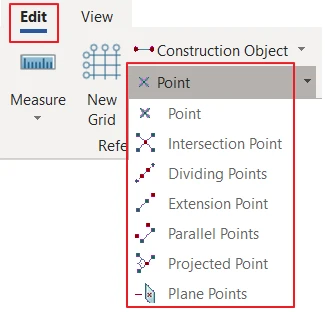
Following point creation commands are available:
- Create Single Point
- Create Intersection Point
- Create Dividing Points
- Create Extended Point
- Create Parallel Points
- Create Projected Point
- Create Plane Points
 Create Single Point
This command is used for creating points at a given coordinate.
There are 2 ways to create a single point :
Method 1: Click on any grid intersection or auto-snap point
- Select "
Point" in the dropdown list
- Click on any grid intersection or any snap points
- Point will be created.
Method 2: Using Fast Entry Mode
- Click " Point" in the dropdown list
- Press Enter to launch the fast entry menu.
 Found out more about : Fast Entry Mode.
  Create Intersecting Point
Found out more about : Fast Entry Mode.
Use this command to create a point at the intersection of two lines. Each line is defined by selecting two points (see the figure below).
To create intersection point:
- Select
Intersecting Point command.
- Then, select points P1 and P2 to define the first line.
- Finally select points P3 and P4 to define the second line. The point is generated at the intersection point provided that the lines intersect.


Points P1, P2, P3 and P4 may be previously generated points, grid intersection points or frame element end points.
 Create Dividing Points
This command is used to create points on a line segment with equal spacings. Line segment is defined by selecting two points; P1 and P2 and the spacing is calculated automatically according to the number of points, n, to be generated (see the figure below).
To create dividing points:
- Shift + left click
icon on the Point toolbar to set the number of points to be generated, n (see the figure below).
- Then, left click
icon on the Point toolbar or select the Dividing Points command.
- Next, select the points P1 and P2. Points are generated with a spacing s = |P1P2|/(n+1) where |P1P2| is the distance between points P1 and P2, and n is the number of points to be generated.
 Points P1 and P2 may be previously generated points, grid intersection points or frame element end points.
  Create Extend Point
Use this command to create points on the extension of a line segment. Line segment is defined by selecting two points; P1 and P2 and point is created at a distance d from point P2 along the direction of the vector that is defined from P1 to P2 (see the figure below).
To create extension points:
- First shift + left click "
Extend Point" command on the Point toolbar to set the extension distance. Enter the distance d, which is in the current units system, into the input box and click OK (see the figure below).
- Then, left click "
- Next, select the points P1 and P2. Point is generated at a distance d from point P2.
 Points P1 and P2 may be previously generated points, grid intersection points or frame element end points.
  Create Parallel Points
This command creates two points that lie on a line that is parallel to another line segment P1P2 defined by points P1 and P2. The lines are off set by a distance d from the line segment P1 P2 (see the figure below)
To create parallel points:
- First shift + left click
Parallel command to set the offset distance d before selecting points P1 and P2 (see the figure below).
- Then, left click
- Next, select the points P1 and P2. Points are generated at a distance d from the line P1P2.
 Points P1 and P2 may be previously generated points, grid intersection points or frame element end points.
  Create Projected Point
This command creates a point by projecting a selected point, say P3, on a line formed by points P1 and P2 (see the figure below).
To create a projection point:
- Left click "
Projected Point" command.
- Then, select the first and second points (P1 and P2) to define the line.
- Finally, select the point that is to be projected.

Points P1, P2 and P3 may be previously generated points, grid intersection points or frame element end points.
 Create Plane Points
This command is used to create points on the line-plane intersections. A plane and a line is defined by selecting points (see the figure below). If the line and plane intersect, a point is generated at the intersection.
To create a plane-line intersection point:
- Left click "
plane points" command.
- Next, define the plane by any three points on the plane.
- Then, define the line by selecting two points on the line. If the line and plane intersect (i.e. they are not parallel), the intersection point is created.

Points that are used to define the plane and line can be previously generated points, grid intersection points or frame element end points.