Web designing in a powerful way of just not an only professions. We have tendency to believe the idea that smart looking .

Manuals Page

409 result(s) found

Steel Member Design

Steel Member Design

Before the steel members can be designed, you have to model the steel members and perform the building analysis. Currently, ProtaStructure allows you to model and design for the following steel members: Steel Frame Steel Column Steel Brace Steel Girt  Steel Purlin Steel Truss Space Truss Steel Domes   Composite Beam Please take note that ProtaStructure does […]
Read More
Graphical Editor Basics

Graphical Editor Overview

The analytical model of the structure is created in the Graphic Editor, either in a 2D plan view, or in 3D. In order to prepare the model efficiently you are advised to have an understanding of the topics described in this section and the subsequent Structure Modelling section. Graphic Editor User Interface Member Related Controls […]

Read More
Graphical Editor Basics

Displaying Member Properties 12 4 2022

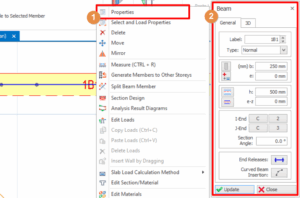
Member Properties can also be accessed by right-clicking after selecting an existing member and choosing the “Properties”  or “Select and Load Properties” in the shortcut menu. Properties of the selected member will be loaded. Alternatively, you can double left-click a member to open the member properties. Repeating member labels are not permitted in a building […]

Read More
Graphical Editor Basics

Show Hide Selected Members

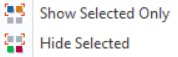
Sometimes, when the model is too crowded, it may not be easy to concentrate on the portion of the structure that you want to work on. A truss or purlin might get between the camera and the object of interest. To help with this,  users can use “Show/Hide Selected Members” functionality to show/hide certain members: […]

Read More
Graphical Editor Basics

Member Related Controls 12 4 2022

Member Selection Before you can edit objects, you need to create a selection set. A selection set can consist of a single object, or it can be a more complex grouping. In order to select members in plan view or 3D view, make sure that properties dialog is not open and not performing any tasks/command. […]

Read More
Graphical Editor Basics

Graphic Editor User Interface 12 4 2022

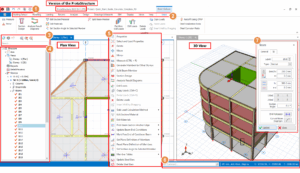
When ProtaStructure is started the "Project Manager" is initially displayed. If ‘New Project’ is clicked the Graphic Editor is opened with a clear drawing area. Alternatively, if an existing project is selected the Graphic Editor is opened with the project data loaded, showing the storey last saved in the plan window. The Graphic Editor is […]

Read More
Graphical Editor Basics

Isolate Unisolate Storey

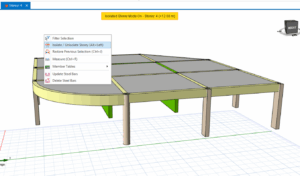
Users can isolate storey in the 3D view, allowing for clearer visualization of the members on the active storey. To isolate a storey, right-click anywhere in the 3D view, then select ‘Isolate/Unisolate Storey’. After that, only the active storey will be visible in the 3D view.  Alternatively, user can use the shortcut button of (Alt+Left) […]

Read More
Graphical Editor Basics

3 D View

Multiple 3D Views of the model can be concurrently made active by going to "Views" Tab > 3D Physical Model. Alternatively, right click the “Views”  in the structure tree and select the “3D view”.  A 3-D perspective view of the whole model can be displayed which can be filtered to display only specific storeys, axes, or […]

Read More
Graphical Editor Basics

Re Label Members

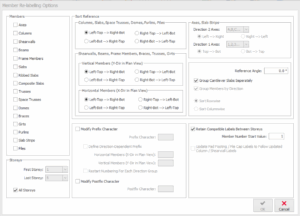
The “Member Re-labelling Option” can be found in “Review” tab to re-assign the member labels for particular member groups. Members can be re-labelled pressing “OK” button after selecting one or more member groups. Members You can check the member groups to be re-labelled using the check-boxes in this section. Storeys Using the dropdown lists in […]

Read More
Graphical Editor Basics

Move Members To Axes

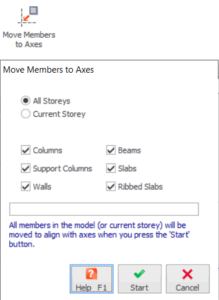
​All members are inserted based on the positions specified by axis intersections. If, for any reason, you have to modify the position of the axes, the members that are inserted based on these axes must also be updated. You can use the "Move Members to Axes" option in the "Review" tab or in the toolbar […]

Read More
Graphical Editor Basics

Creating Members With Mirroring

The "Mirror" command can be used to facilitate the creation of the members in symmetrical buildings. After completing one part of the floor plan, the other part can be generated with the mirror command. To mirror the elements: Select/ Multiple-select the members that will be mirrored.  Choose the "Mirror" option  in the shortcut menu (displayed […]

Read More
Graphical Editor Basics

Review Tab

Under the Review tab, there are functions as in the image below: Re-Label Members To sort the member labels according to user preference. Refer to this article for more details: Re-label members Move Members to Axes To refresh the insertion definitions of members based on related axis positions. Refer to this article for more details: Move Members to […]

Read More