Web designing in a powerful way of just not an only professions. We have tendency to believe the idea that smart looking .

Manuals Page

409 result(s) found

Auto Connection Detailing

2d Fitting Macro Example Psteel 2022

In ProtaSteel, a cutting object can be created easily on a steel profile using  "2D Fitting Macro". Placing the mouse cursor over the 2D Fitting Macro under "Detailing" section in Macro Gallery will reveal the tooltip which describing the scope and steps of this macro. How to use: Select 2D Fitting Macro  Select a profile. Select 1st point on the profile […]
Read More
Auto Connection Detailing

Truss End Plate With Gusset Plate Macro Example Psteel 2022

Truss End Plate with Gusset Plate connection macro creates a connection between a column and secondary trusses with gusset & end plates. Let us focus on the truss by creating a new view along axis A. Placing the mouse cursor over the Truss End Plate With Gusset Plate Macro will reveal the tooltip describing the scope and steps […]

Read More
Auto Connection Detailing

Detail Item Manager Psteel 2022

The Detail Item Manager creates and manages detail items such as the connections. We need this function to create exploded drawings of the connection with different viewing direction & detail information such as dimensions, location of bolts, welds, etc. Placing the mouse cursor over the Detail Item Manager will reveal the tooltip describing the scope and steps of this macro. […]

Read More
Auto Connection Detailing

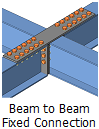
Beam To Beam Fixed Connection Macro Example Psteel 2022

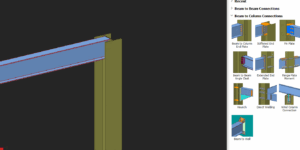
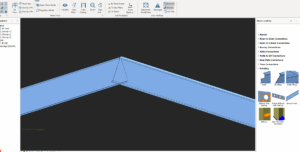
Placing the mouse cursor over the Beam to Beam Fixed Connection Macro under Beam to Beam Connections section in Macro Gallery will reveal the tooltip describing the scope and steps of this macro. How to use it: Click the "Beam to Beam Fixed Connection Macro" icon.   Select the first beam. Select the second beam. The connection will be automatically created. […]

Read More
Auto Connection Detailing

Stiffened End Plate Connection Macro Example Psteel 2022

A Stiffened End Plate Connection can be created between a beam & a beam or a beam and a column. Placing the mouse cursor over the Stiffened End Plate Connection Macro will reveal the tool tip describing the scope and steps of this macro. Stiffened End Plate (Beam – Column) Pick Stiffened end plate connection icon under "Beam to […]

Read More
Auto Connection Detailing

Truss Seating Connection Macro Example Psteel 2022

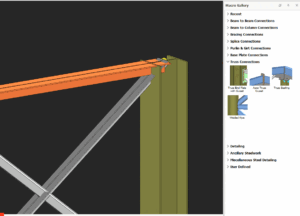
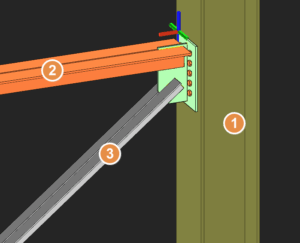
In ProtaSteel, truss top chord and diagonal members can connect to column with Truss Seating Connection Macro.  How to use:  Click the "Truss Seating Connection Macro" icon.  Select the column.  Select the top chord member of the truss.  Select the diagonal member.  Right-click. The connection will be inserted. If there is a truss on the other side of the […]

Read More
Auto Connection Detailing

Handrail Connection Macro Example Psteel 2022

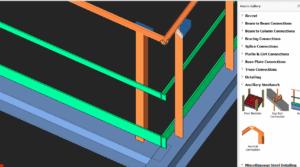
Placing the mouse cursor over the Handrail Connection Macro will reveal the tooltip describing the scope and steps of this macro. How To Use It: Click the First handrail. Click the Second handrail. The connection will be automatically generated. Create the most appropriate View first before creating the connection. The same view & orientation will be used […]

Read More
Auto Connection Detailing

Bolted Gusset Plate Connection Macro Psteel 2022

Placing the mouse cursor over the Bolted Gusset Plate Connection Macro will reveal the tooltip describing the scope and steps of this macro. The below is the example as described in ProtaSteel Basic Training Guide : Pick Bolted Gusset Plate Connection  Pick the beam Pick the bottom brace Right-click A gusset plate connection will be created joining the bottom flange […]

Read More
Auto Connection Detailing

Splice Connection Macro Example Psteel 2022

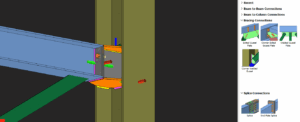
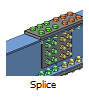
A Splice Connection Macro can be created between a beam & a beam or a beam and a column. Placing the mouse cursor over the Splice Connection Macro  will reveal the tooltip describing the scope and steps of this macro. How to use it Click "Splice" under splice connections category.  Pick the Top Column. Pick the Second Column. The […]

Read More
Pre-Analysis

Pre Analysis Overview

Before analysing the building you must ensure that Project Parameters, Load Combinations, Wind & Storey Loads and Materials have been correctly defined. These settings are all located on the Pre-Analysis tab of the “Building Analysis” dialog. They are explained in detail in the following sections : Materials Project Settings / Parameters Load Combinations Wind and […]

Read More
Pre-Analysis

Seismic Analysis To Indonesia Sni 1726 2019

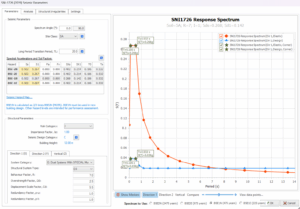
ProtaStructure can now calculate seismic loads in accordance with Indonesia (SNI 1726 :2019 ) seismic code, which is an adaptation of ASCE07. Go to Building Analysis dialog > Pre-analysis tab :  Click on Settings Center > Code section will be shown > Pick Earthquake Code    Click Seismic Parameter to access the Seismic Parameters & Settings Click the i  icon for more information and guidance on the parameter.  […]

Read More
Pre-Analysis

Seismic Analysis To India Nbc 2016

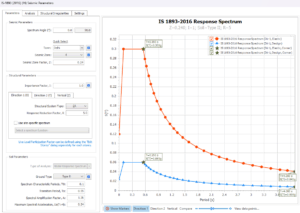
ProtaStructure can calculate seismic loads in accordance with India (IS 1893-2016) seismic code, which covers the key parts of IS codes.  Click on Settings Center > Code section will be shown > Pick Earthquake Code    Click Seismic Parameter to access the Seismic Parameters & Settings Click the i  icon for more information and guidance on the parameter. Please ensure to also read this article Seismic […]

Read More