Web designing in a powerful way of just not an only professions. We have tendency to believe the idea that smart looking .

Manuals Page

409 result(s) found

Seismic Capabilities

Seismic Design In Protastructure 2019 Webinar

Content: Specification of Seismic Parameters Calculation of Mass • Eigenvalue Analysis Equivalent Static Load Method Mode-Superposition Method Two-stage Analysis Building Base and Height Check Stiffness Modifiers Vertical Earthquake Effects Horizontal and Vertical Irregularities Selection of Analysis Method Relative Storey Drift Check Second-Order Requirements Check Seismic Overturning Check Strong Column – Weak Beam Check Joint Shear […]

Read More
Seismic Capabilities

Seismic Capabilities Of Protastructure Suite 2022

Since 1985, we have been providing industry-leading structural engineering software solutions to professionals across the globe. Based on our knowledge and experience in designing safe structures, we work hard to enhance the seismic capabilities of ProtaStructure Suite in each version. In this webinar, Prota Software Product Manager Mustafa Tümer Tan provides significant details about the […]

Read More
Seismic Capabilities

Performance Based Design And Assessment With Protastructure

Topics: Modeling of Existing Buildings Selection of Seismic Parameters correctly Corrosion Factors Overview of Assessment Interface Building Information Level Rebar Realization Factors Examination of Assessment Reports Retrofitting ProtaStructure-OpenSees Integration Pushover Analysis Target Displacement Pushover Curve Nonlinear Time-History Analysis Ground Motion Scaling Definition of Material Nonlinearities Definition of Section Nonlinearities Member Plastic Rotations Limit Plastic Rotations […]

Read More
Engineering Drawings

Diagnostic Tools

General Diagnostic tools can assist user to aware of modelling error and mistakes when developing the connection and modifying the model. Thus, time saving for user to check on modelling problems exist in the model before generating drawings.  The diagnostic tools can be accessed by going to Tools. The tools are: Clash Check  Audit Model  Clash Check […]

Read More
Engineering Drawings

Dxf Export 3 3 2021

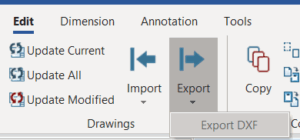
User can easily export drawing as DXF in "Drawing Module" by going to "Edit" top menu> Export > Export DXF In DXF Export Dialogue, steps to export as below: Select export directory and enter file name. Adjust the settings such as scale, origin of Export and Text Width Factor. Besides, more option can be done in "DXF Export […]

Read More
Engineering Drawings

Modifying Profile Colour In Drawing Module

In Drawing module, users are able to adjust and change the colour of the all the elements before exporting the drawing. However the change of members’ colour is only visible in drawing module. During exporting the drawing, there will be a layer setting to adjust the color of all the elements. To understand on the […]

Read More
Engineering Drawings

Dimensioning

General In the Drawing Module (Ctrl+D), one can create dimension lines in any Viewport window using the dimensioning tools provided. Dimensioning commands works similar to the dimension commands of common CAD programs. Created dimension lines are three dimensional and can be viewed from any direction just like all other objects (structural elements, nodes, points, etc.) […]

Read More
Engineering Drawings

Points Construction Objects And Text

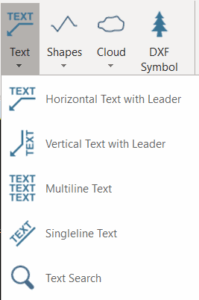
General In the drawing module, the drafting icons can be used to drawing lines, shape or create text. The "Points, Construction Objects and Text" toolbar are shown as below :                      Please take note that these drafting tools will only be presented on drawing and will […]

Read More
Engineering Drawings

Import Titleblock For General Drawing

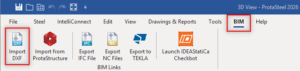
User can simply import company standard titleblock as DXF in "Drawing Module" by going to "BIM" top menu > Import DXF (Make sure that the titleblock is not in block.) Select the company standard titleblock DXF directory. Titleblock annotation can be insert/modify using "Text" Function. For more detail on "Text" function please refer to our article : Points, Construction […]

Read More
Engineering Drawings

Viewport Properties

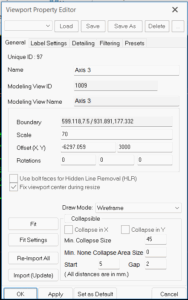
Double-click any place within the Viewport blue border to access the Viewport Properties The viewport properties mainly controls the final presentation of the drawings.  There are several tabs in this dialog General tab Name :  This will the name of the viewport and the name will be shown at the bottom of the viewport (if desired) Modelling View ID & Modelling […]

Read More
Engineering Drawings

Customization Of Assembly And Part Drawings

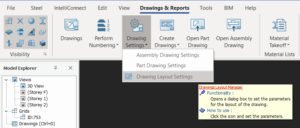
Assembly and part drawings are created automatically in ProtaSteel. These drawings are prepared with the settings specified by the software. These settings can be customized by user. Changing the Drawing Properties Open the “Drawing Settings” from the “Drawing and Reports” top menu and choose "Drawing Layout Settings" to change the drawing layout properties. In the […]

Read More
Engineering Drawings

Drawing Module

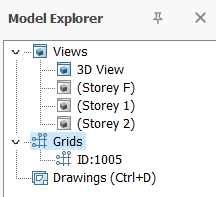
ProtaSteel has a powerful tool to prepare engineering drawings – it’s simply called the “Drawing module”. The drawings are based on the views prepared in the modelling module. The steps are summarized as below : 1. Create the desired View in Model Explorer > Views 2. Ensure the orientation of the view you want to use in […]

Read More