

Adjust Text Height Of Dimension And Label
General
Text height of dimensions (e.g. beam dimension, column dimension, etc) and labels (beam label, column label, etc) can be adjusted in ProtaDetails.
Method 1
Adjusting Text Height in the Layers.
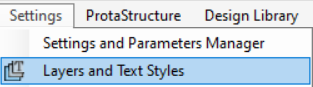
- Go to "Settings" > "Layers and Texts Style"
- Adjust the "Text Height (mm)" respectively based on the Description.

- Click "OK"

Take note that "Text Height (mm)" has a maximum cap value at 99 in "Layers". If text height is required to enlarge further, please try method 2.
If you have previously applied Method 2, Method 1 will override Method 2.
Method 2
Adjusting Text Height in the “Text Styles” & "Dimension Styles".
Adjust Text Height of Dimension
- Go to "Format" > "Dimension Styles"
- Select the corresponding dimension style (e.g. BEAM)
- Input the corresponding parameters based on preferences (e.g. Text Height)
- Click "OK"
Adjust Text Height of Label
- Go to "Format" > "Text Styles"
- Select the corresponding text style (e.g. Beam Label)
- Input the corresponding parameters based on preferences (e.g. Height)
- Click "OK"
Below recorded GIF using beam elevation as an example to adjust the text height of dimension and label.