

Beam Elevation Drawings Faq Example
Auto Truncation of Beam Elevation Details
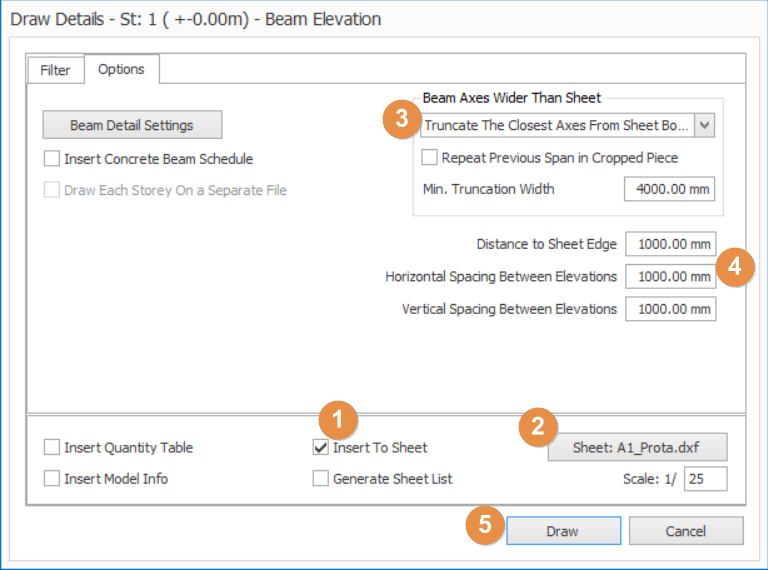
Long beam elevations can be automatically truncated to fit in any sheet border. This translates to significant increase in productivity as these time-consuming editing is no longer required.
- Click Auto Generate Details (Details Drawings Manager) in Start-up page OR
- Right-click on Storey Beam Elevation Drawings > Draw all Beam Elevations
- At Option Tab, check Insert to Sheet
- Click Sheet > Choose the sheet in Sheet list
- You can save your own sheet in C:Users[Username]DocumentsProtaLibSheets
-
- Pick how to truncate under Beam Axes Wider Than Sheet by select from drop down :
- Don’t Truncate – even if beams details are out of sheet border
- Truncate from Sheet Border
- Truncate the Closest Axes from Sheet Border – will ensure truncation only at axes
-
- Input the various criteria of truncation & detailing
- Click Draw
How to Show/Hide Bar Mark for Reinforcement Bars
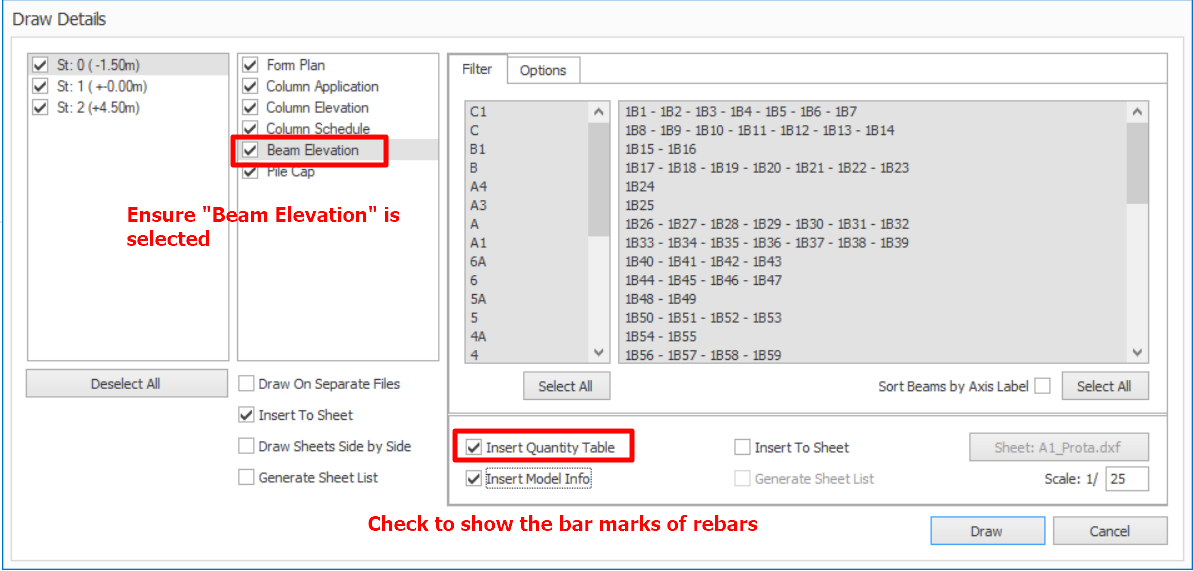
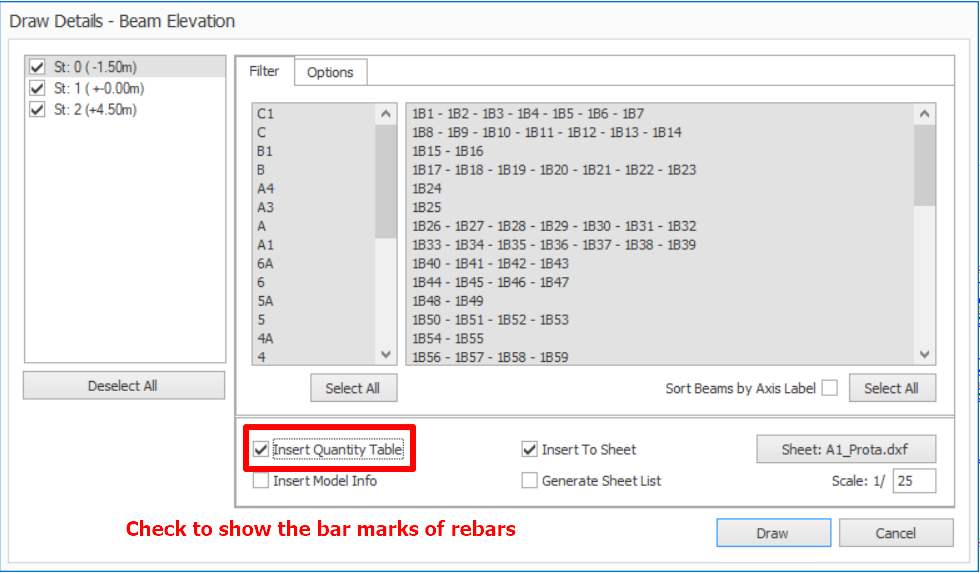
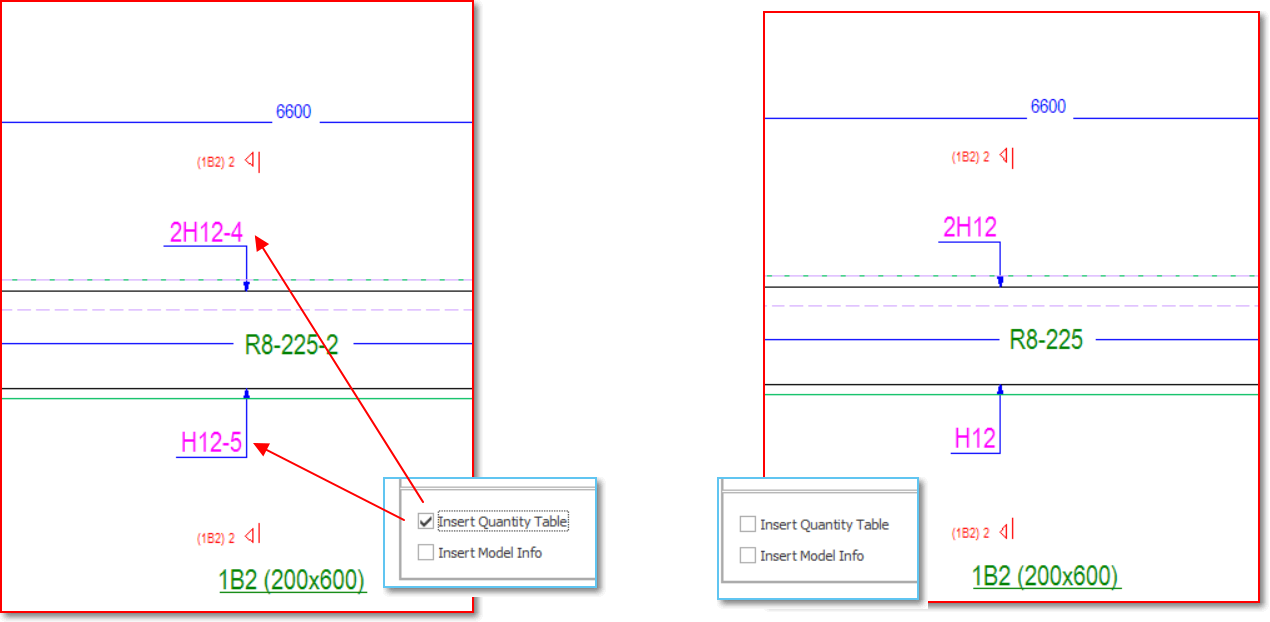
Bar Marks of reinforcement bars in beam elevation drawings can be shown depending upon a user setting. This feature enables user to generate the quantity takeoff of the reinforcement bars used in concrete beam.
It can set through either:-
- Auto Generate Details (Detail Drawings Manager), or
- Storey Beam Elevation Drawings
Below images show the effect of the option:
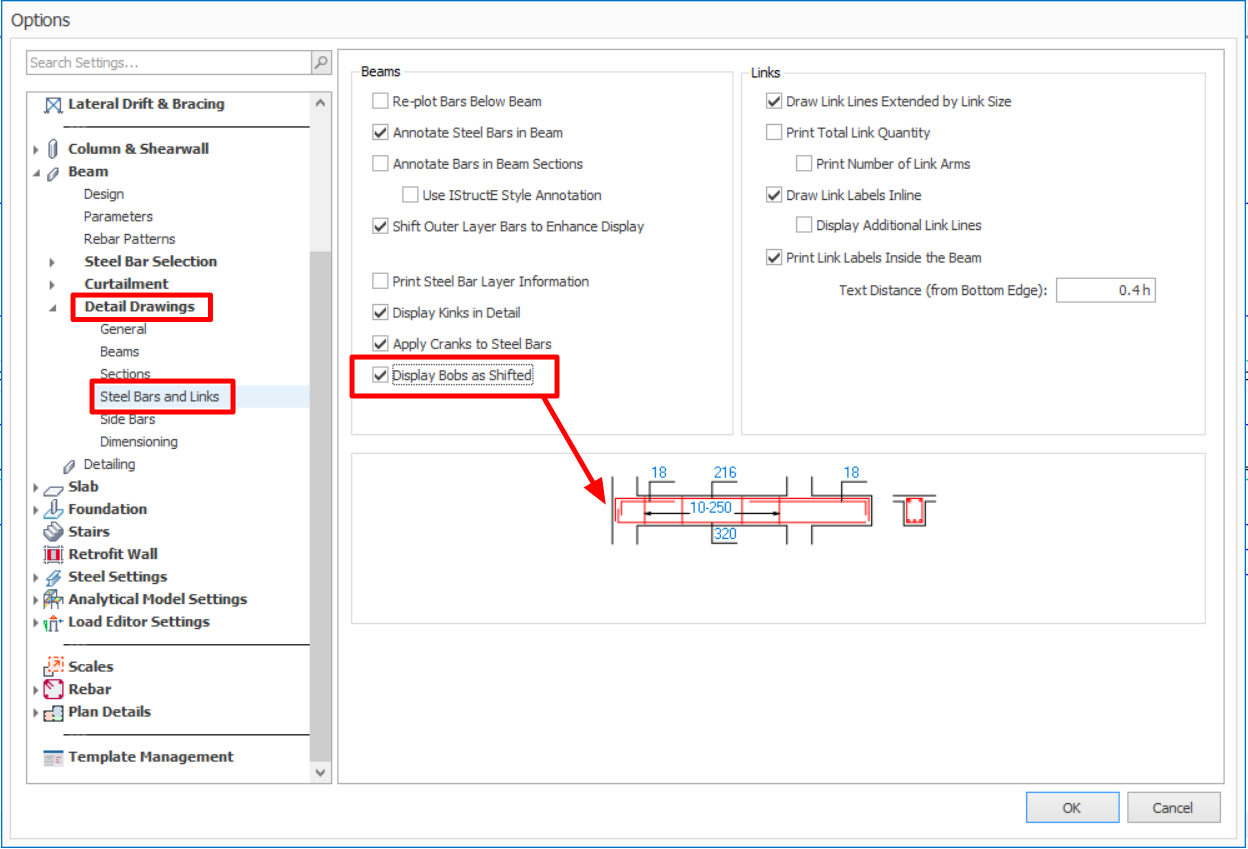
Display BOBs as shifted in Beam Elevation Drawing
Display of top and bottom bending of bars will be shifted slightly at the end span in beam elevation drawing (as shown below) once this option is checked.
This feature is available in the Beam Design Settings > Detailing > Steel Bars and Links tab > tick "Display Bobs as Shifted"
How to show hide dimensions for BOB
- Settings > Beam Settings > Detailing Drawings > Dimensioning
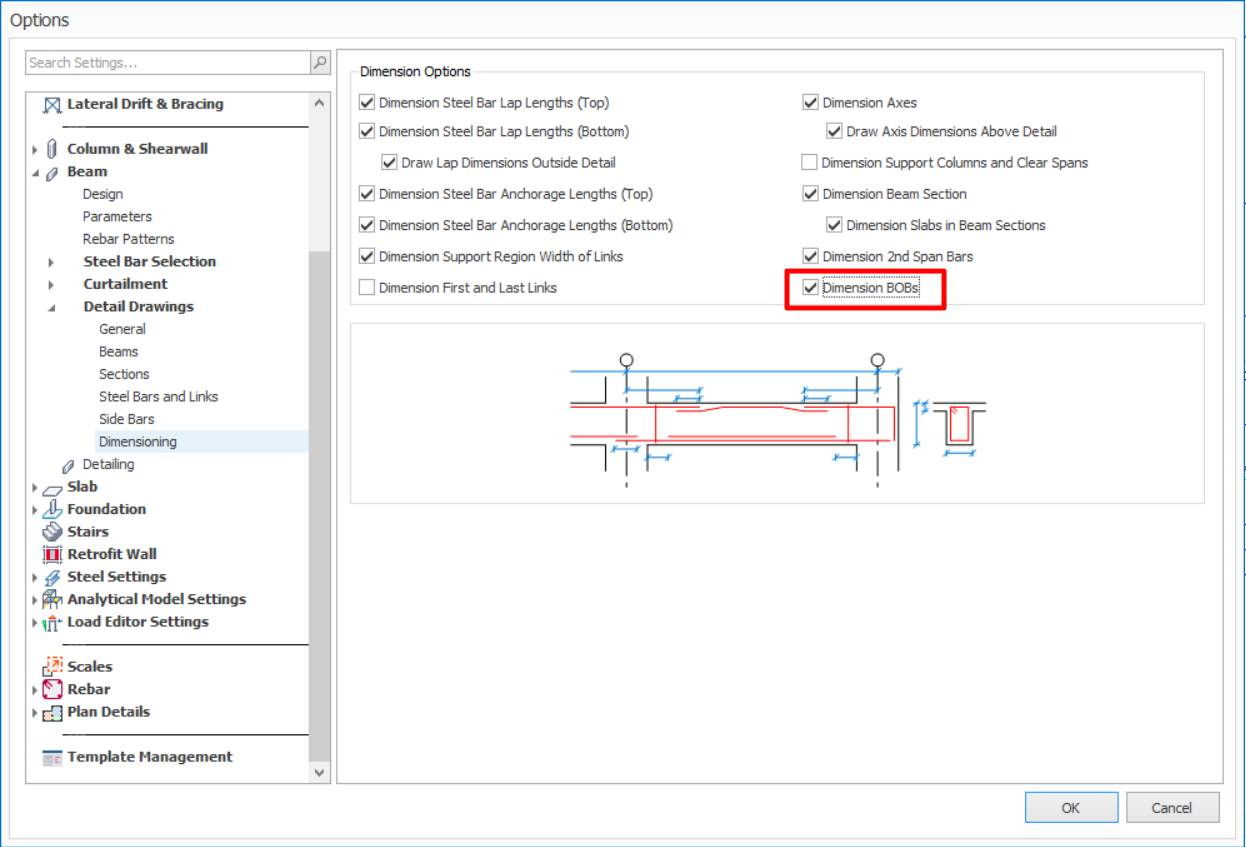
Option Checked Option Unchecked