Displaying Member Properties 12 4 2022
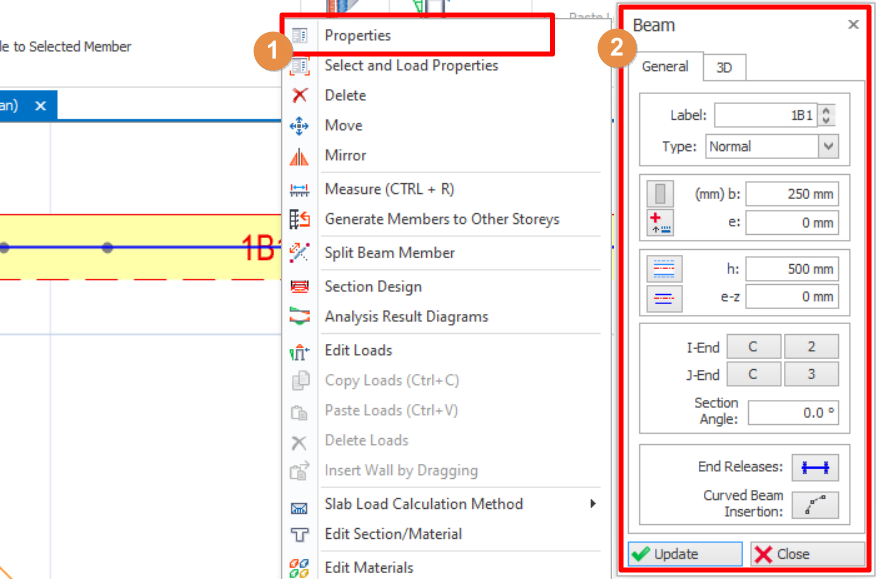
Member Properties can also be accessed by right-clicking after selecting an existing member and choosing the “Properties” or “Select and Load Properties” in the shortcut menu. Properties of the selected member will be loaded.
Alternatively, you can double left-click a member to open the member properties.

Repeating member labels are not permitted in a building and the duplicated labels will be automatically changed to new label.
Right-Clicking the selected member in Plan or 3D View
Right clicking in plan view or 3D view will call out shortcut menus only if a member or a group of members are selected. The shortcut menu may contain options specific to the type and to the number of members selected.
Right-Clicking in the Structure Tree
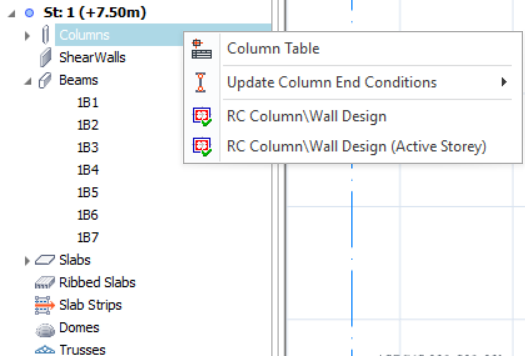
Shortcut menus can also be displayed by selecting and right-clicking the members in the structure tree.
Member Tables
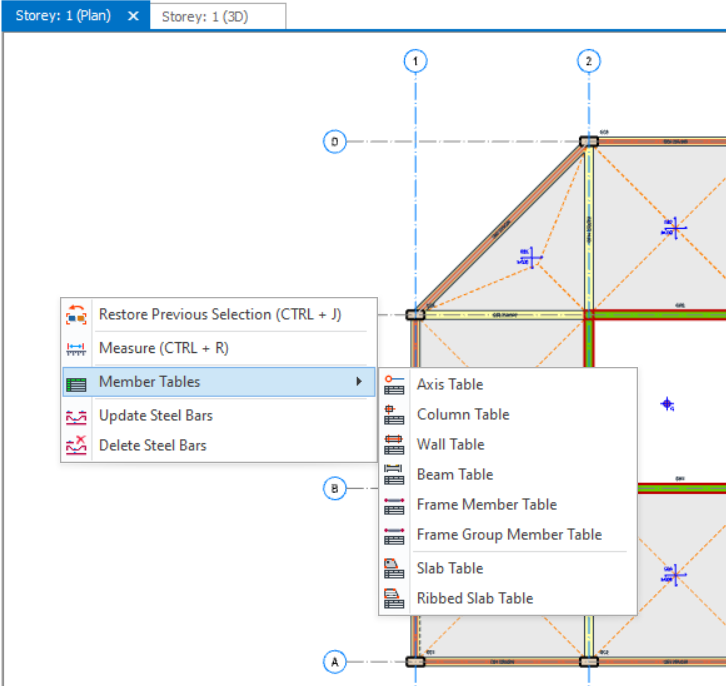
Right-click anywhere on the plan view or 3D view to call out Member Tables. Then, select which member table is to be opened.
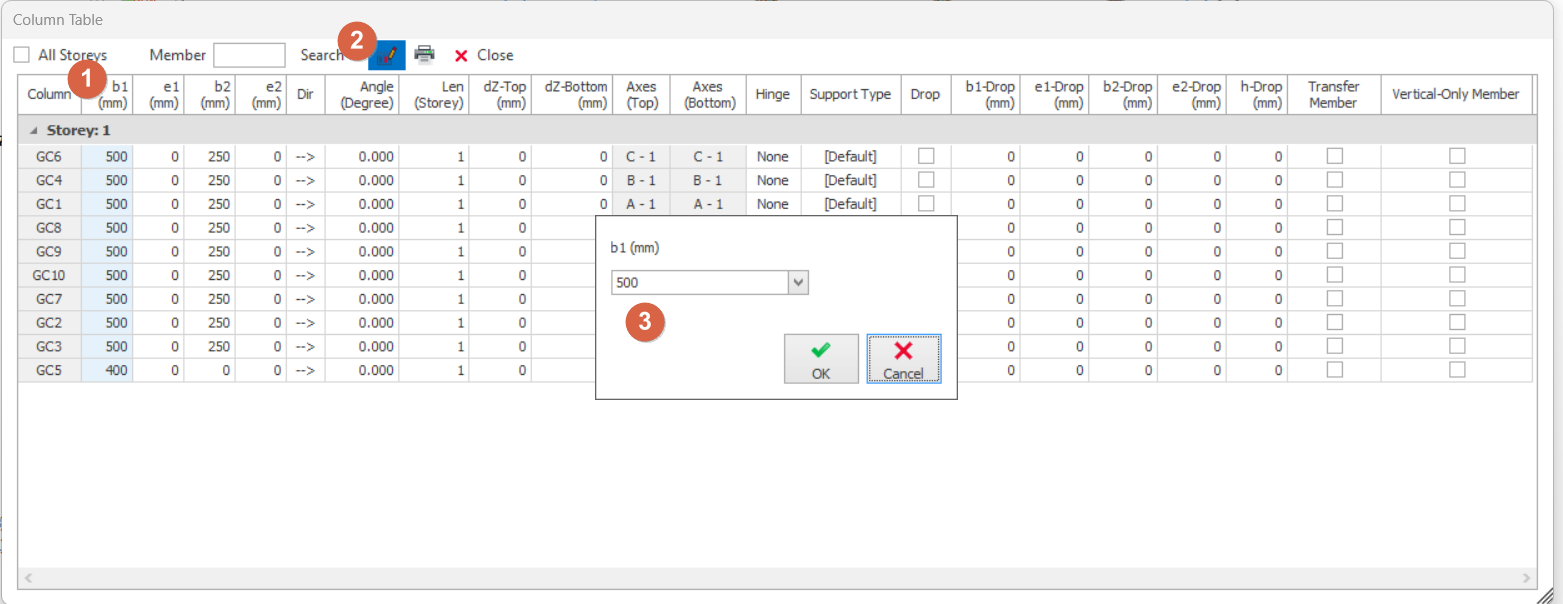
For example below, column table is selected. In the column table, you are able to edit the properties for multiple column members. Use the column-wise edit button to change the properties of multiple members.