

How Do Show Transfer Discontinuous Columns And Walls On Plan View
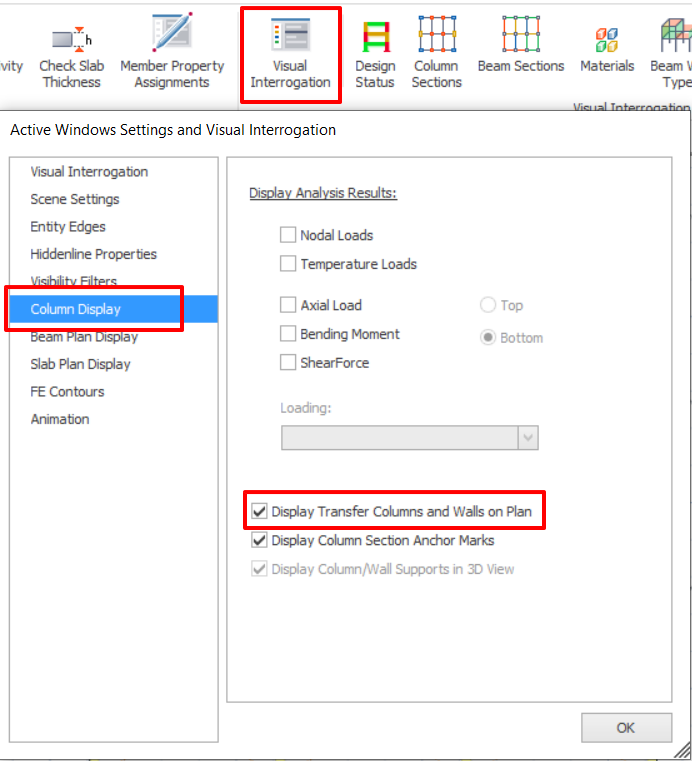
To show show transfer/ discontinuous columns and walls on plan view of the transfer storey :
1. Click on Visual Interrogation in Review tab
2. Select Column Plan Display
3. Tick Display Transfer Columns and Walls on Plan
Example Model
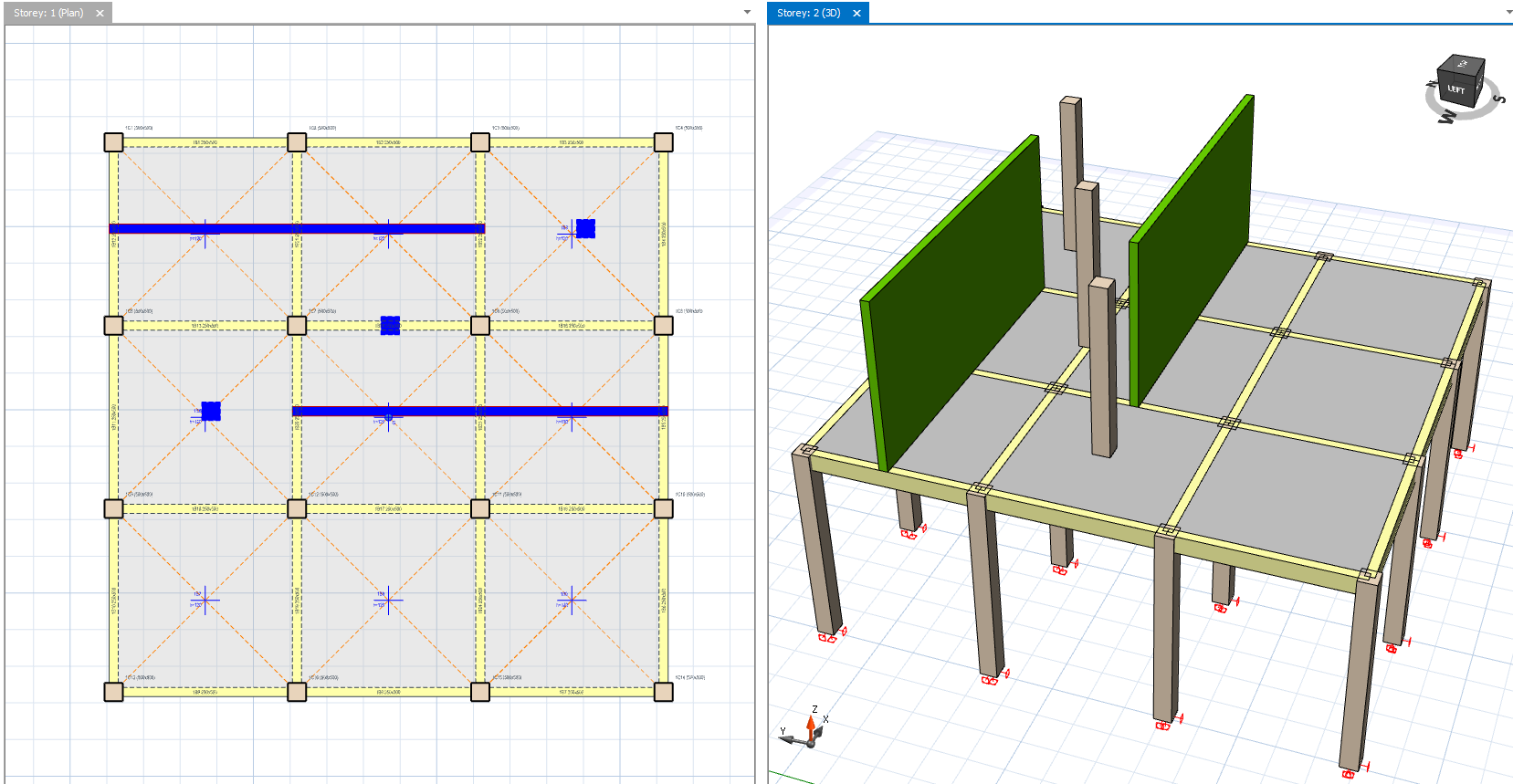
The below is a example of a transfer plate. Storey 1 is the transfer level and Storey 2 is the transfer/ discontinuous walls and columns are modelled.
When the "Display Transfer Columns and Walls on Plan" option is enabled, the transfer columns and walls are shown in a different color (blue) on the plan view of ST01.
Define discontinuous or transfer walls and columns in ProtaStructure
In ProtaStructure, transfer/ discontinuous walls or columns must be defined according to the following settings:
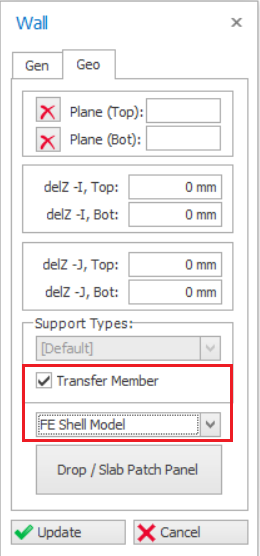
- Transfer/ discontinuous walls
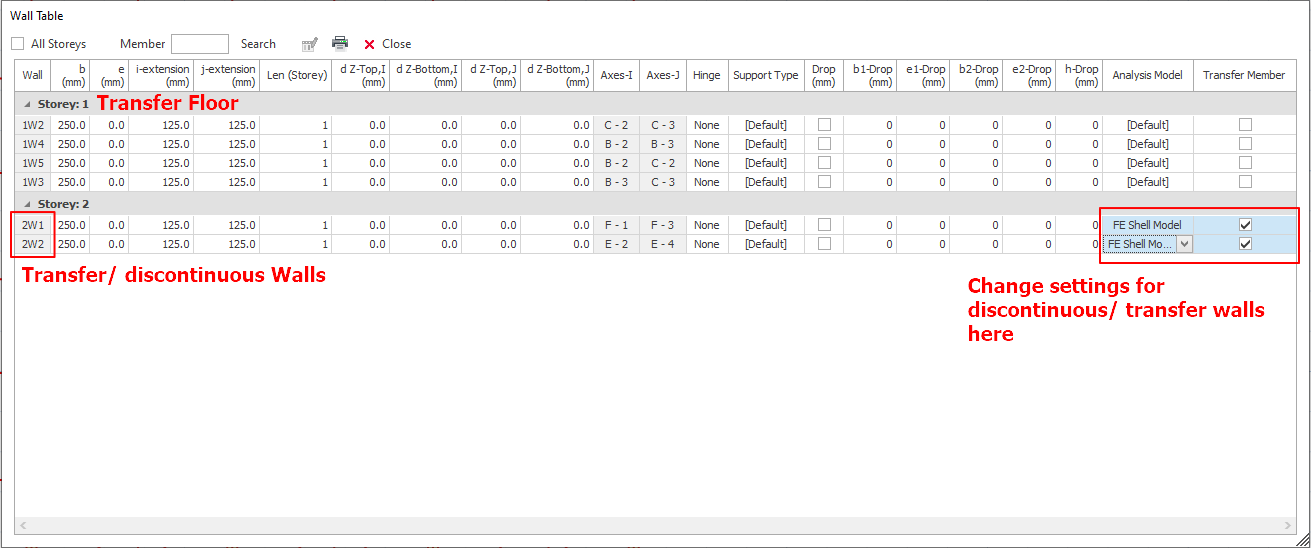
- Check "Transfer Member" option
- Set "FE Shell Model" as wall analysis model
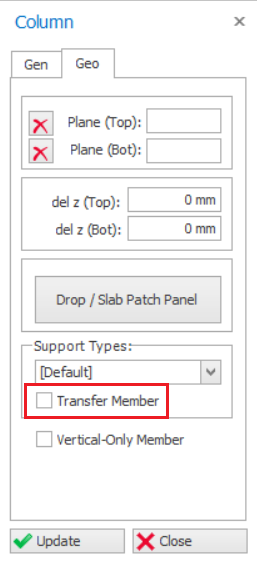
- Transfer/ discontinuous columns
- Check "Transfer Member" option
How to change properties setting for multiple discontinuous or transfer walls and columns
- Enable "Display Transfer Columns and Walls on Plan" option in Visual Interrogation tab to show transfer/ discontinuous walls or columns on plan view of transfer floor.
- Go to transfer floor and then select all members in plan view. When you select all walls/columns in plan view, discontinuous/transfer walls and columns will be selected as these transfer members are shown in plan view of transfer floor.
- Right Click > Member Tables > Select Wall Table or Column Table.
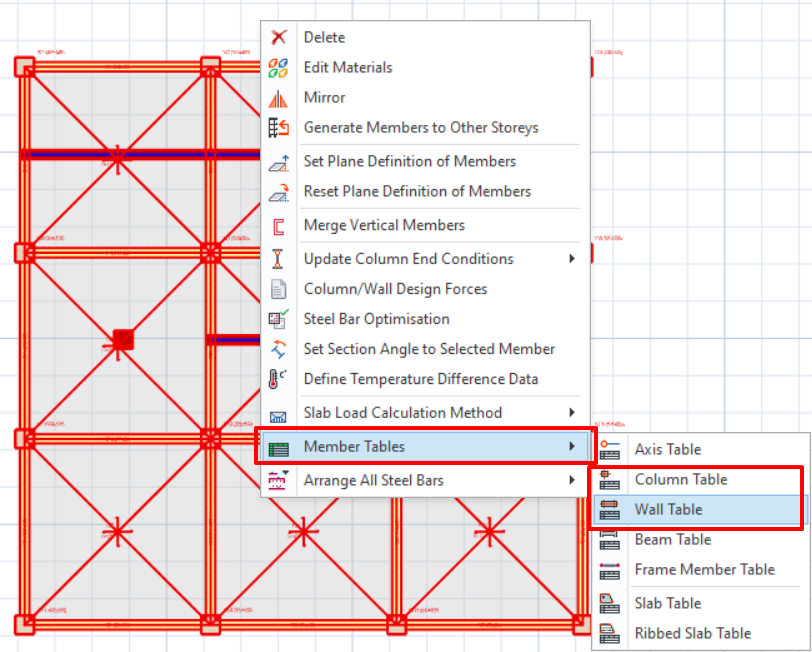
- In the members tab, transfer/ discontinuous walls will be listed here. You can change Wall Model to "FE Shell Model" and check "Transfer Member" option for transfer members.

1 Comment
1010betlogin
April 4, 2026Yo, 1010betlogin is my go-to spot these days. Super easy to navigate, and I always find what I’m looking for. Check it out 1010betlogin, you might like it.