

Load Editor Ps2022
Member Load Editor
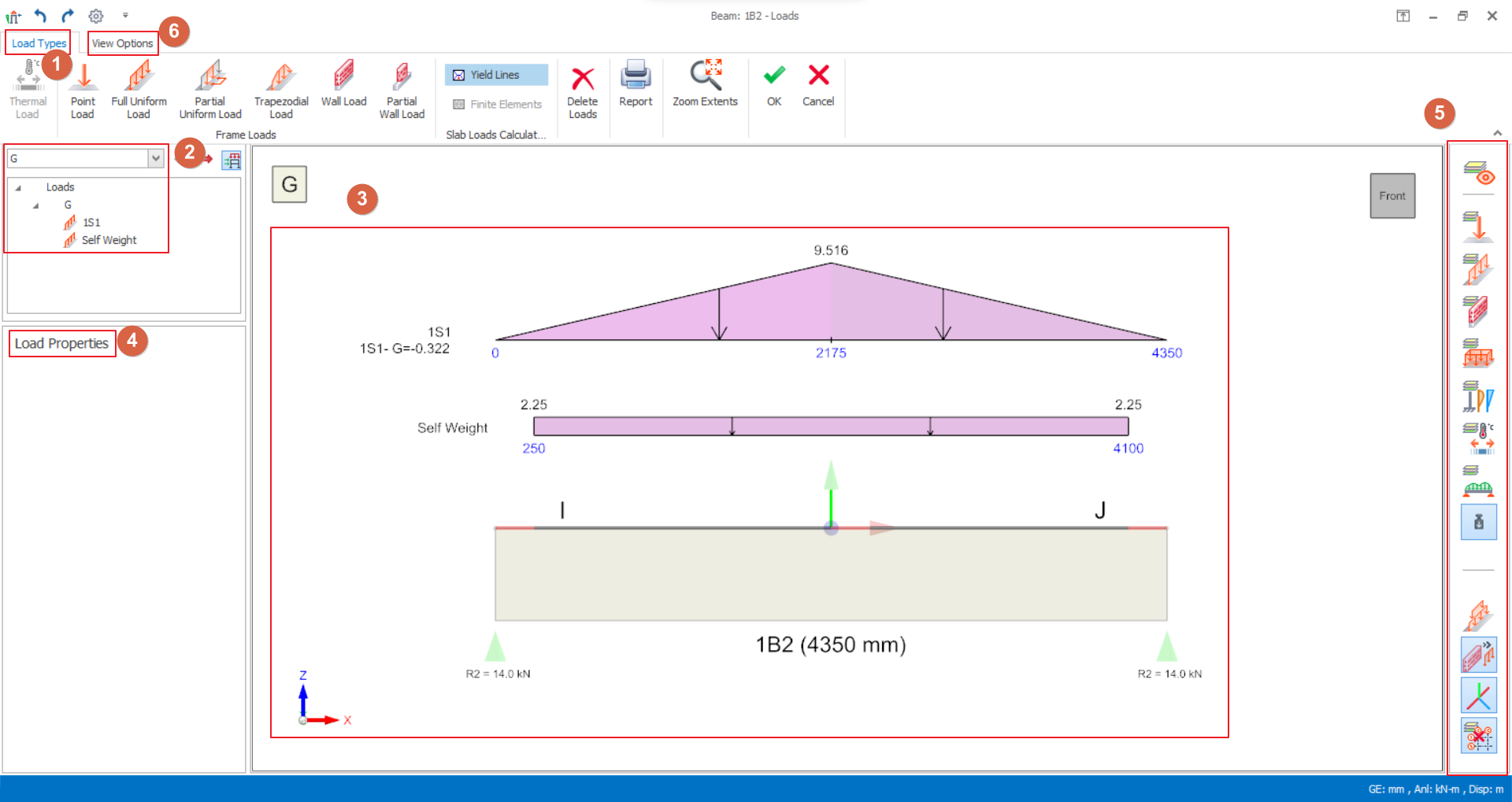
- Load Types
- Select the load type to insert (e.g. point load, uniform load, etc.)
- Self-weight is auto calculated and it can’t be edited.
- Load Case & Loads Folder
- Select the load case from the dropdown list to insert the loads. It is also able to use arrow buttons
 to select next load case
 - Existing loads will be listed for the selected load cases. If button
 is toggled on, all the existing inserted loads will be listed.
 - Select the load name and Right-click will expose a menu option to allow you “Edit”, “Cut”, “Copy” or “ Remove” the load
- Loads Diagram
- Graphical representation of the loads including self-weight
- Existing loads can be selected by left-click on the diagram > Right-click will expose a menu option to allow you “Edit”, “Cut”, “Copy” or “ Remove” the load
- Click on the member diagram to insert a load after choosing the Load Type and input values in the Load Properties.
- The member and load diagram can be Zoom In/Out, rotated (right-click & drag) and pan (middle click & drag).
- Load Coordinate System is shown with X, Y, Z arrows. The arrows located at bottom left corner is Global Coordinate System while the arrows located at member is local coordinates system. The directions of X, Y, Z are also represented by Direction-1, Direction-2, and Direction-3 respectively in local coordinate system.
- Load Properties
- Enter label, direction, and magnitude values for the load to be created
- To update an existing load, select it in the Loads Folder or Loads Diagram > Revise the value > Click Update.
- Load Type Filter
- Click the icon to toggle on and off the associated diagrams/layers.
- View Options

- These are the settings that control rendering of member, loads graphics, text height, scaling and frame labels.
- Show Loads as merged
: Loads under the same load case will be combined in single diagram. This option must be switched off if would like to edit the load.
- Show Infill Walls as line load
: If it is toggled on, infill wall will be shown as line loads. If it is toggled off, infill wall will be rendered with actual height and width.
Wall Load
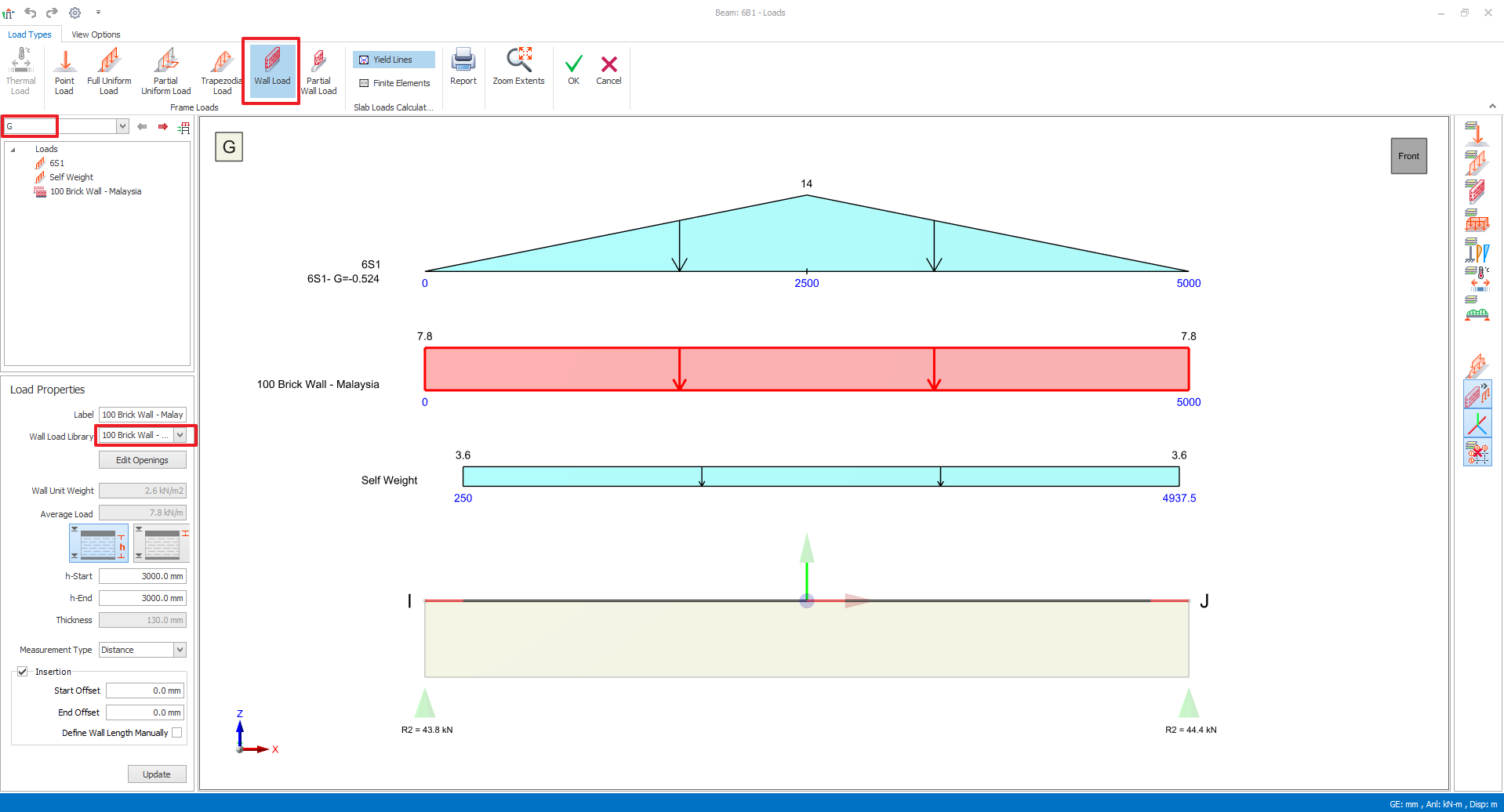
- Select a beam, right-click > Load Editor.
- Ensure G load case is selected in the Loads Folder at the left.
- In Load Properties, Wall Load Library , select the brickwall type.
- Brickwall height is preset to storey height. To input brickwall height other than storey height, please edit “h-Start” & “h-End” in Load Properties.
- Place mouse cursor on the beam and left click to create the load. The load will be created and added in the diagram and loads folder.
- Press ESC key to end the wall load insertion process and click OK to save & exit.
Automated Infill Wall Load
 . This option enables the program to recognise the change in storey height and prompt the infill wall load to correspond to that change.
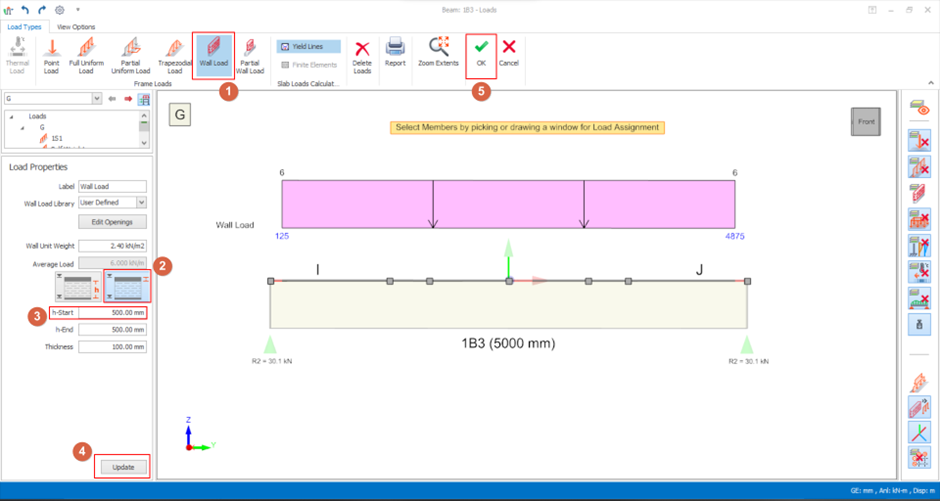
 - Select the beam and then right-click. Select Edit Loads to open the Load Editor
- Select Wall Load

- Select the Automated Infill Wall

- Set the value of h-Start as the depth of the beam above (i.e., 500mm in this example)
- Click Insert and Update to ensure that the wall load is inserted
- Click OK to close the Load Editor
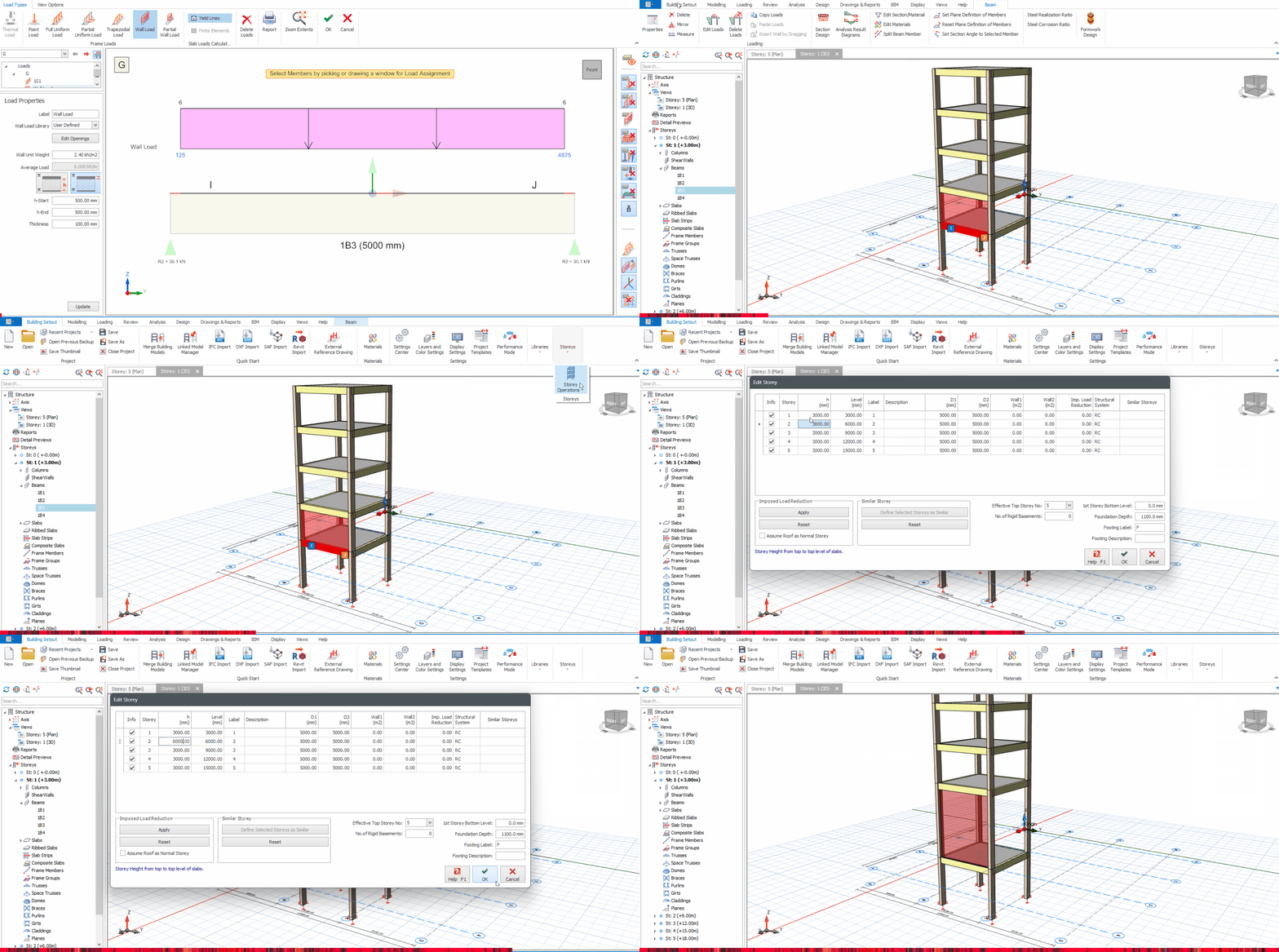
Once the infill wall load has been assigned, we can test
this out. The video below shows how the automated infill wall works. The initial
storey height of 3000mm for storey 2 was then updated to 6000mm. The change in
height of the infill walls correspond to the change in height of storey 2,
hence updating the load of the infill wall.

- Enter value in Start & End Offset
- Alternatively, check Define Wall Length Manually
Define Slab Load via Load Editor
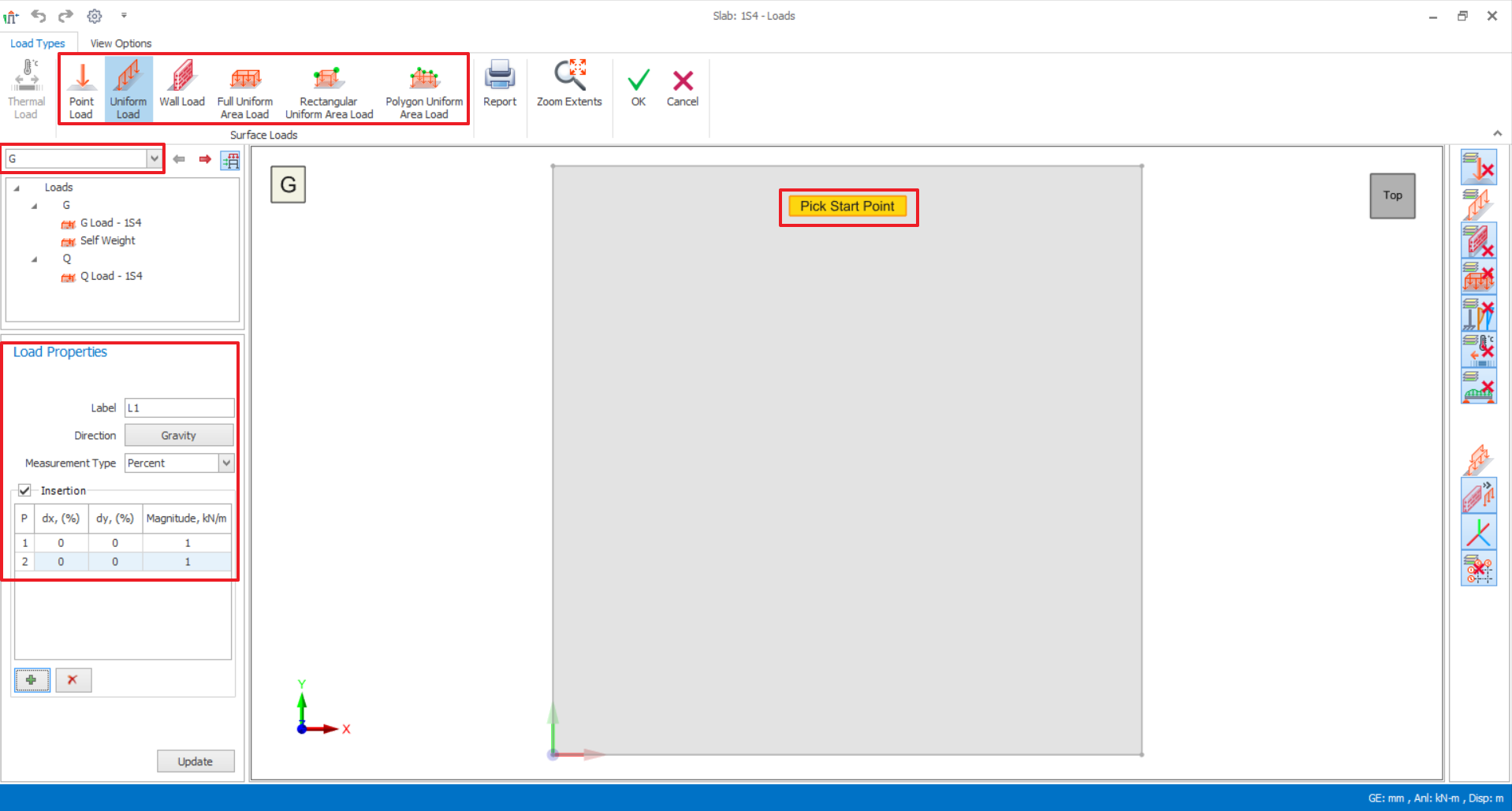
- Select a slab, right-click > click on Load Editor.
- Ensure that the load case selected is correct.
- Click on the load type that would like to assign on slab.
- Tick the option “Insertion”, revised or edit the load magnitude value and click on slab surface on to assign the load
- It can also directly draw/insert the load on slab surface and update the magnitude (if required)
- Click “OK” to exit the dialog.
Define Loads on Cladding, Dome, Girts and Purlins
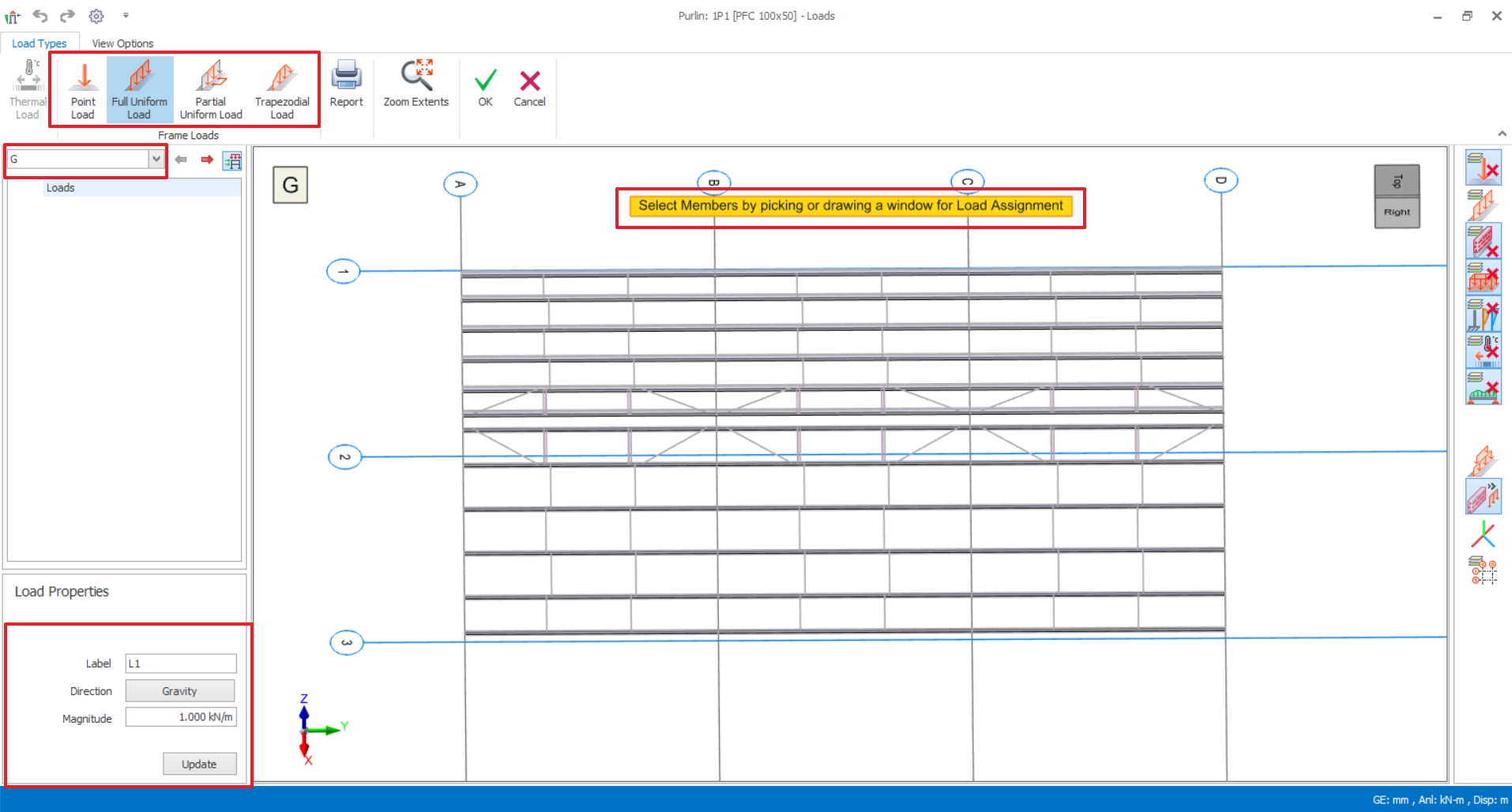
- Select purlins, right-click > click on Load Editor.
- Ensure that the load case selected is correct.
- Click on the load type that would like to assign on purlins.
- Enter preference loading magnitude.
- Click on one purlin or more. If would like to assign corresponding loading more than one purlin, click and drag a window to assign.
- Click "OK" to exist the dialog.
Copy, Paste, Delete Loads
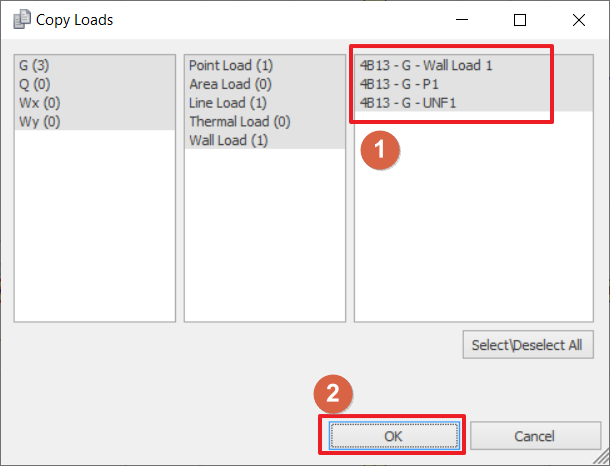
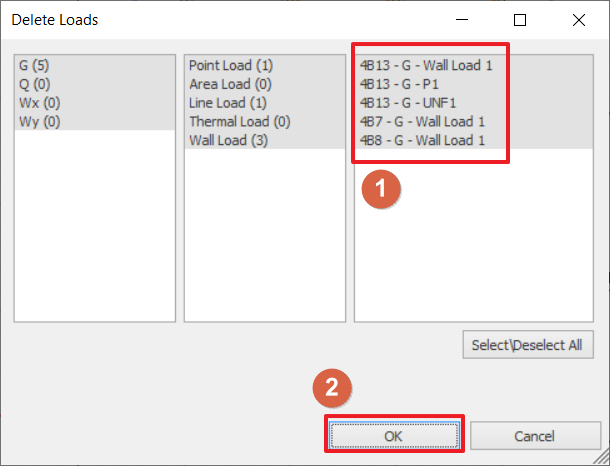
Storey Load Editor
- Ensure the active storey is NOT ST-00
- Ensure that there are no members are selected and go to Loading tab > Click Load Editor

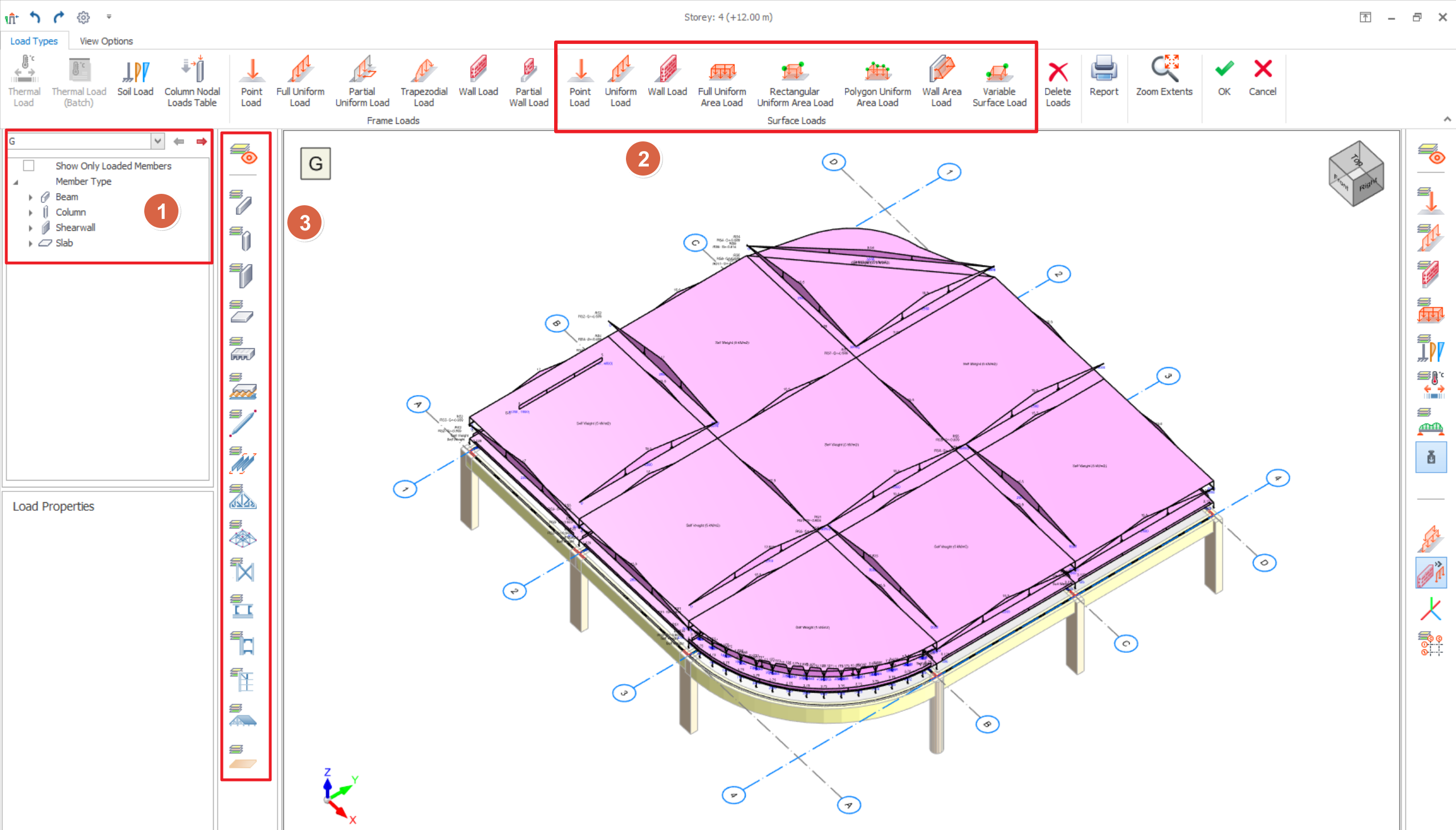
- Load Types
- Surface Loads are area loads that can be applied to slabs and walls
- Self-weight is auto calculated and cannot be edited.
- Load Case & Loads Folder
- Choose the load case to insert the loads. Existing loads will be listed for selected load case
- Loads folder resembles the Structure Tree which organises loads under member type
- Show only Loaded Members: If this option is checked, it will omit any members without any loads from listed.
- Expand the folder > Click on the load name to select it > right-click will expose menu options to “Edit, “Cut, “Copy” and “Remove” the load.
- Member Filter
- Toggle visibility of member type in the diagram. Example if Beam layer is off, then all beams and loads applied to beams will be hidden
Assigning / Importing Nodal Loads onto Columns via Spreadsheet
If you have multiple point loads or concentrated moments prepared in a tabulated manner in an external Excel sheet, you can now quickly assign them to columns in ProtaStructure in a batch. Here’s how:
1. Go to the plan view of the storey where you want to insert the column loads.2. Open the Loading Editor Storey for the active floor.3. Click on the "Column Nodal Loads Table" button on the toolbar in the loading editor.
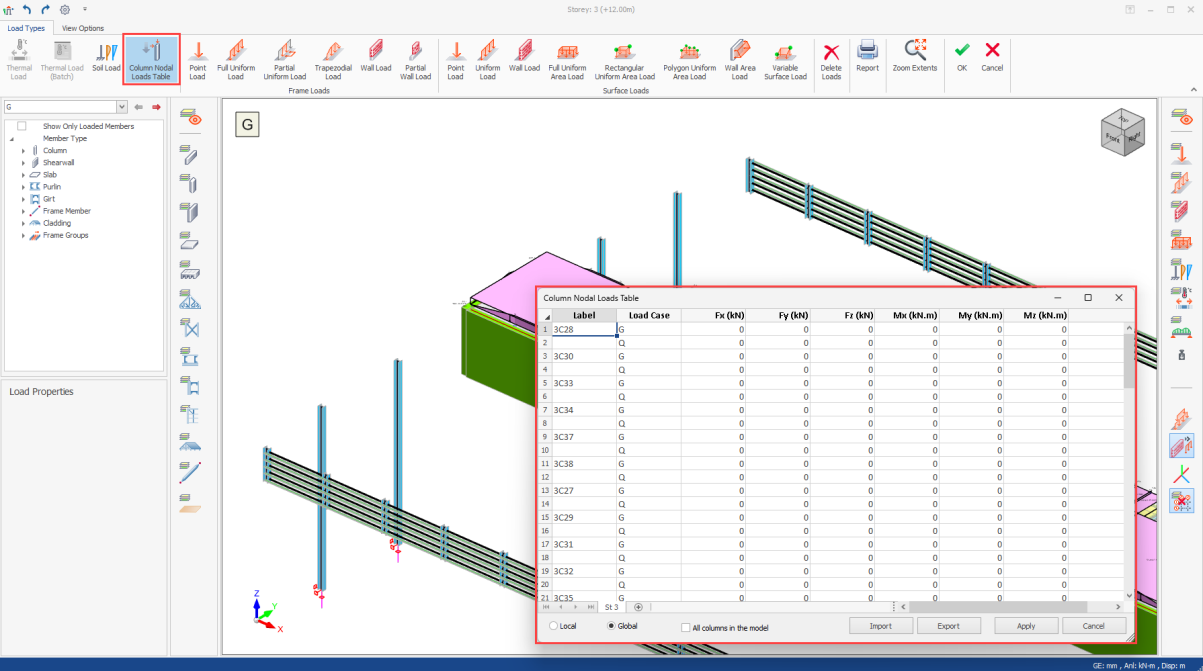
A. First and Easiest Method: Direct Value Entry
1. Use the table to enter the Fx, Fy, Fz, Mx, My, Mz values for the desired columns in local or global coordinates.
B. Second Method: Exporting the File
1. If you prefer to work within Excel, click the "Export" button to open the table in Excel.
C. Third Method: Copy/Paste
If you already have load values ready at your disposal in a different place, you can paste them into the table in ProtaStructure using the copy/paste command.
