


Member Related Controls 12 4 2022
Member Selection
Before you can edit objects, you need to create a selection set. A selection set can consist of a single object, or it can be a more complex grouping.
In order to select members in plan view or 3D view, make sure that properties dialog is not open and not performing any tasks/command.
You can make modifications to the members of the selection set. If only a single member is selected, the related properties will be loaded for editing. If multiple elements are selected, only group editing (ie. deleting, mirroring and etc.) can be performed. For example, if you select multiple beams, you can change the slab load calculation methods for the selected beams.
You can pick a member or multiple select members (with "Ctrl") in the Structure tree, 3D views and plan view with the left mouse button. Any subsequent pick from the structure tree will cancel the previous selection if “Ctrl” key is not pressed before selection.
Selection Filter 
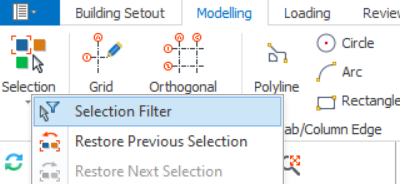
Selection filter is a filter tool that allow you to choose and filter category/elements to be picked. Selection Filter is available at Modelling tab > Selection > Selection Filter.
You can simply tick on category/element that you wish to pick and untick category/element that you wish not to pick. Select/Deselect all button allows you easily tick or un-tick all. category/element.
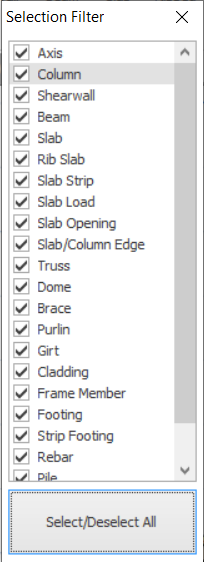
GIF below shows how to select slabs and columns only in the plan view with Selection Filter.
Filter Selection
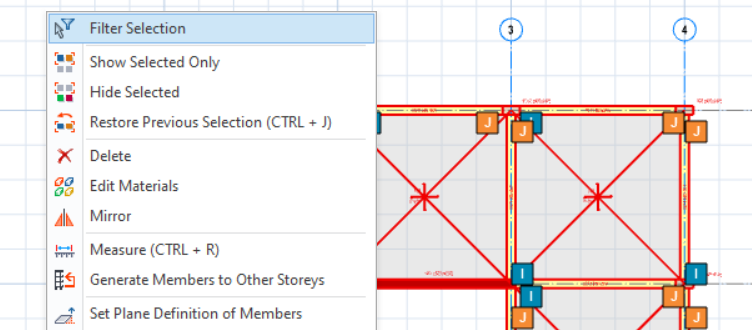
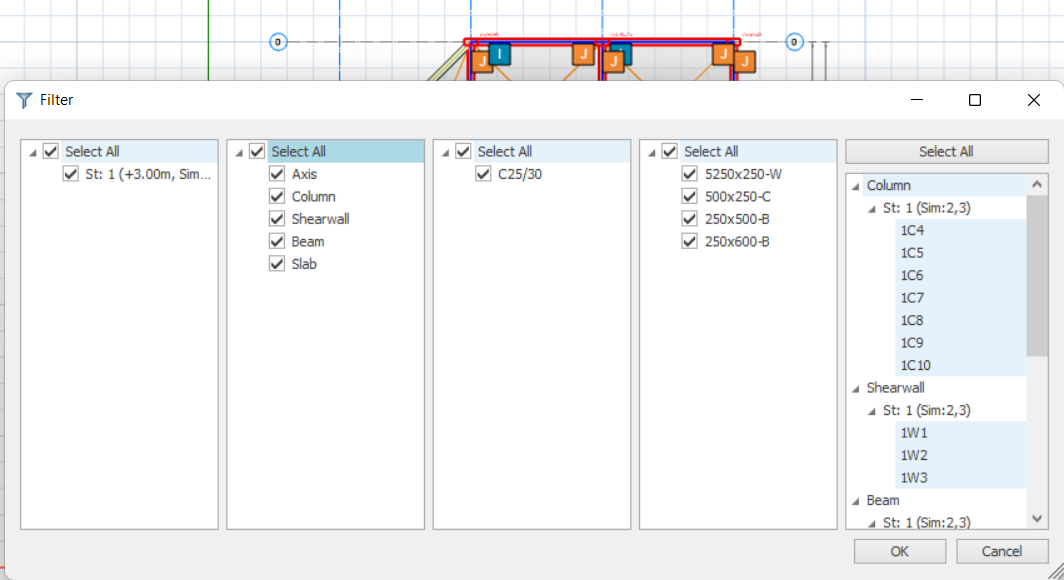
When multiple members are selected in the modelling view, "Filter Selection" will be shown in the shortcut menu (right click). "Filter Selection" helps user to filter selected members especially when the members are difficult to select.

"Restore Previous Selection" simply reverts back to the immediate previous selection.
The above Filter Selection works both in plan or 3D view.
Using Filter Selection to Show or Hide members
It is useful to use the above Filter Selection dialog to show or hide certain members, in Plan or 3D view.
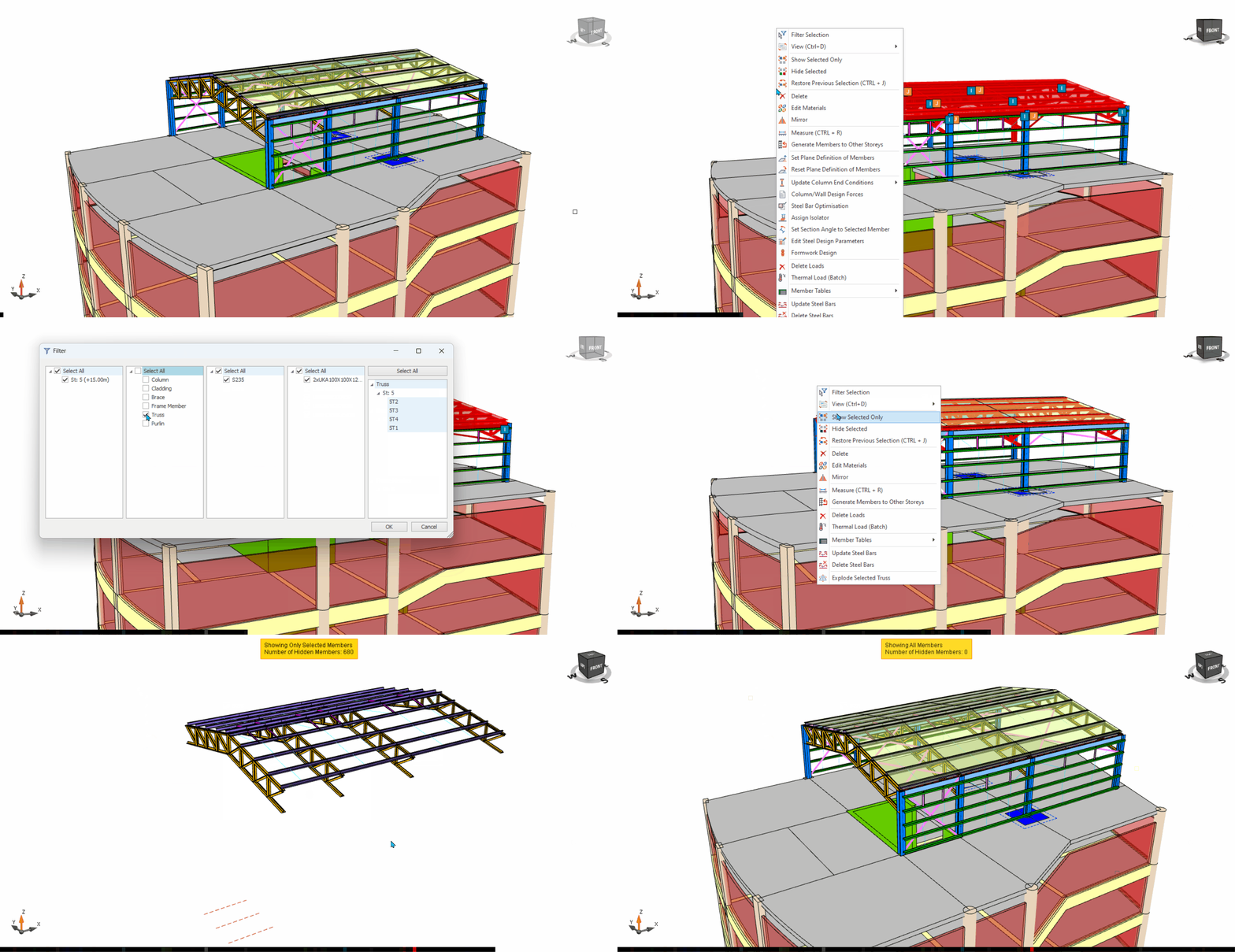
In the above example model with both steel and concrete members, if you only want to show roof trusses & purlins :
1. Go to the 3D view2. Click & drag a box around all the roof members3. Right-click > Filter Selection4. In the Filter dialog box, uncheck "Select All", pick "Truss" & "Purlins" > OK5. Right-click > "Show Selected" Only6. To show all members again > Right-Click > "Show All"