

Protadetail Environment Ps 2022
Display
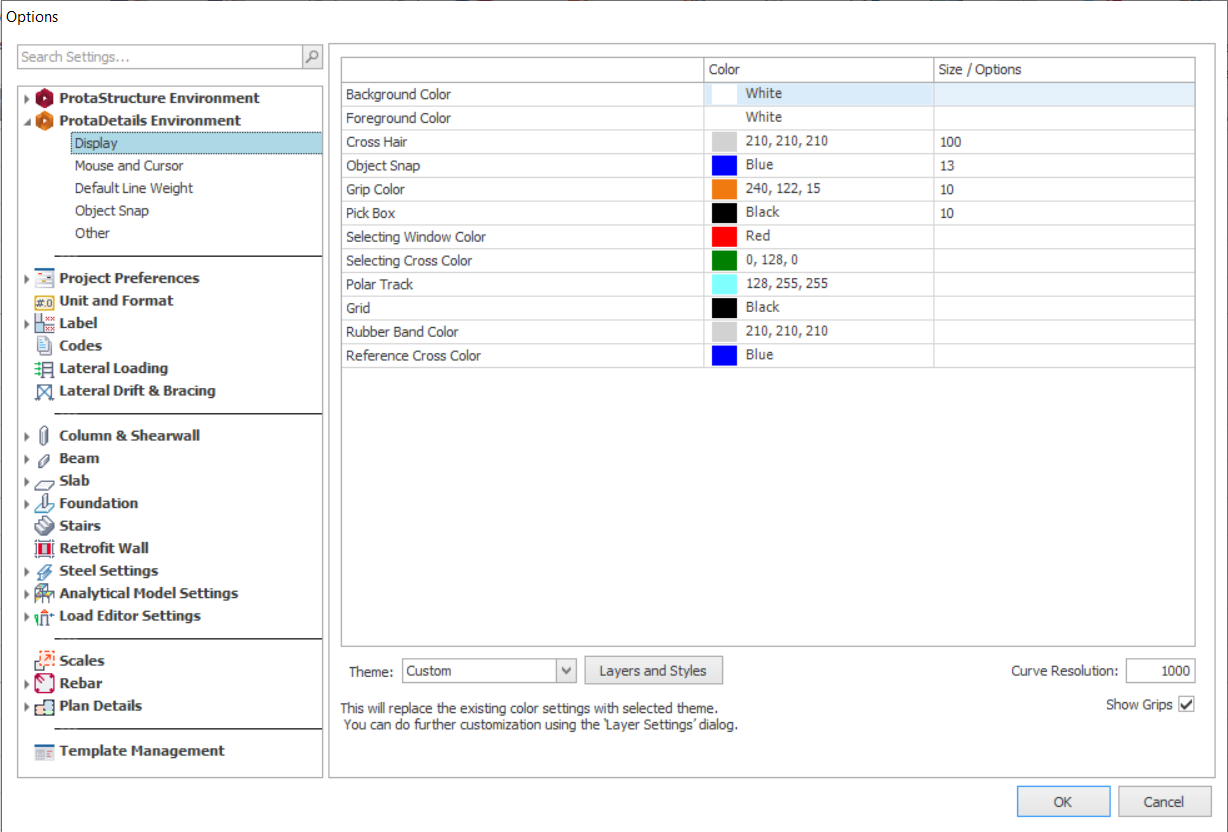
This page controls the colour and size settings of the graphic user interface of ProtaDetails.
Colour and size of each entitle can be preset in the table. Alternatively, the theme can be modified using the provided dropdown list.
- Layers and Styles : Button to open up the ProtaDetails layers settings.
- Curve Resolution : To increase the value of Arc and circle smoothness. The higher the value, the smoother the curve becomes.
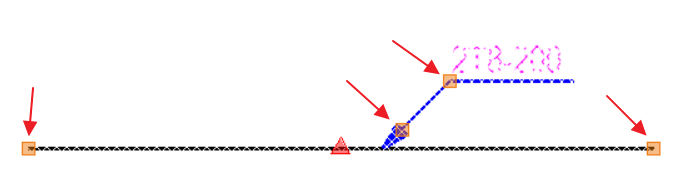
- Show Grips : To toggle on the grips to edit/adjust the size or shape of an entities (ie. stretch, move, copy, rotate, scale, and mirror) without entering any edit commands.
Mouse and Cursor
This page controls the mouse control settings in ProtaDetails.
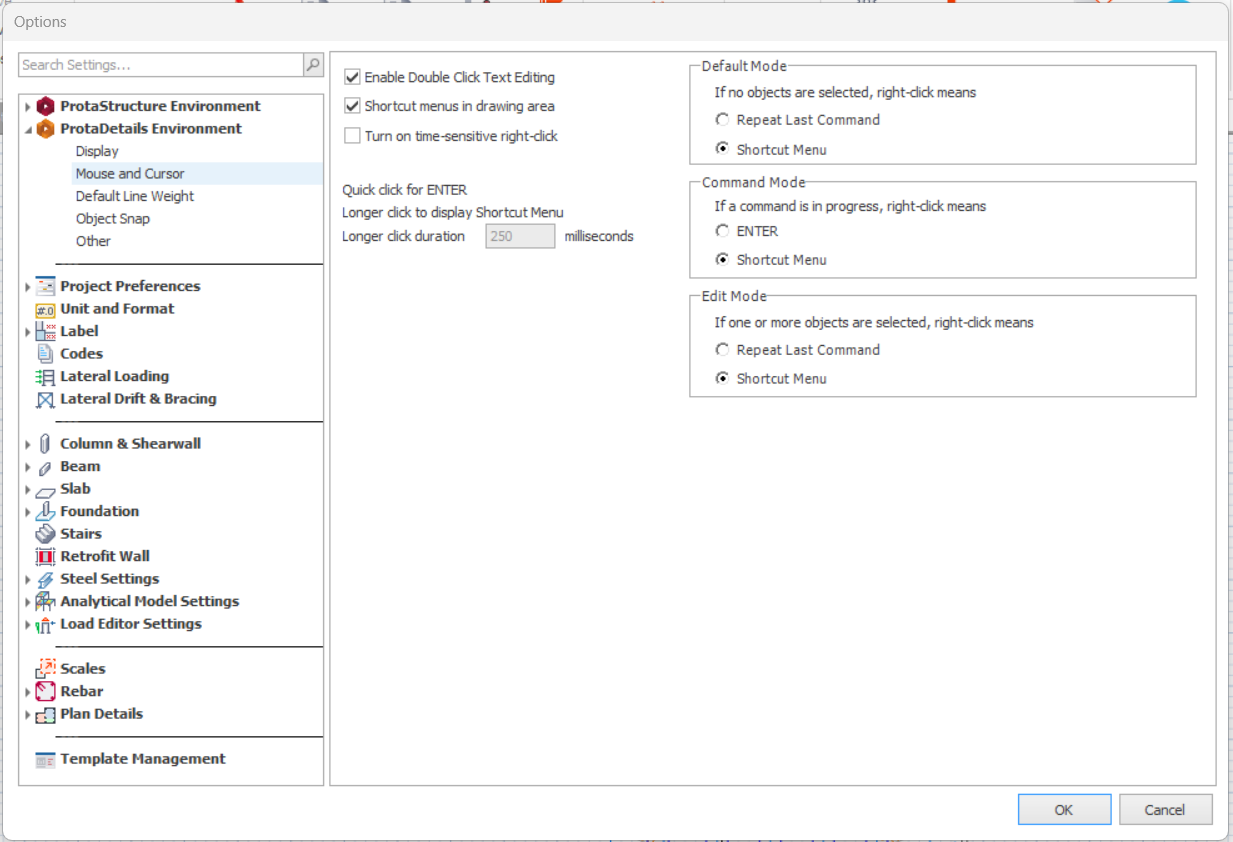
- General :
- Enable Double Click Text Editing : To enable text editing when double clicking on free standing text objects. For auto generated group formed text such as leaders of rebars, "Explode" command should be applied before able to double click edit.
- Shortcut menus in drawing area : To enable the access of shortcut menu by right clicking on the drawing area.
- Turn on time-sensitive right-click : To enable multiple command when using right clicking based on click duration. (ie. quick right click or longer right click.)
- Longer click duration : – To set minimum duration to be considered as longer right click.
- Default Mode / Command Mode / Edit Mode : If time-sensitive right-click is disabled (except Edit Mode), user can preset the usage of right click.
Default Line Weight
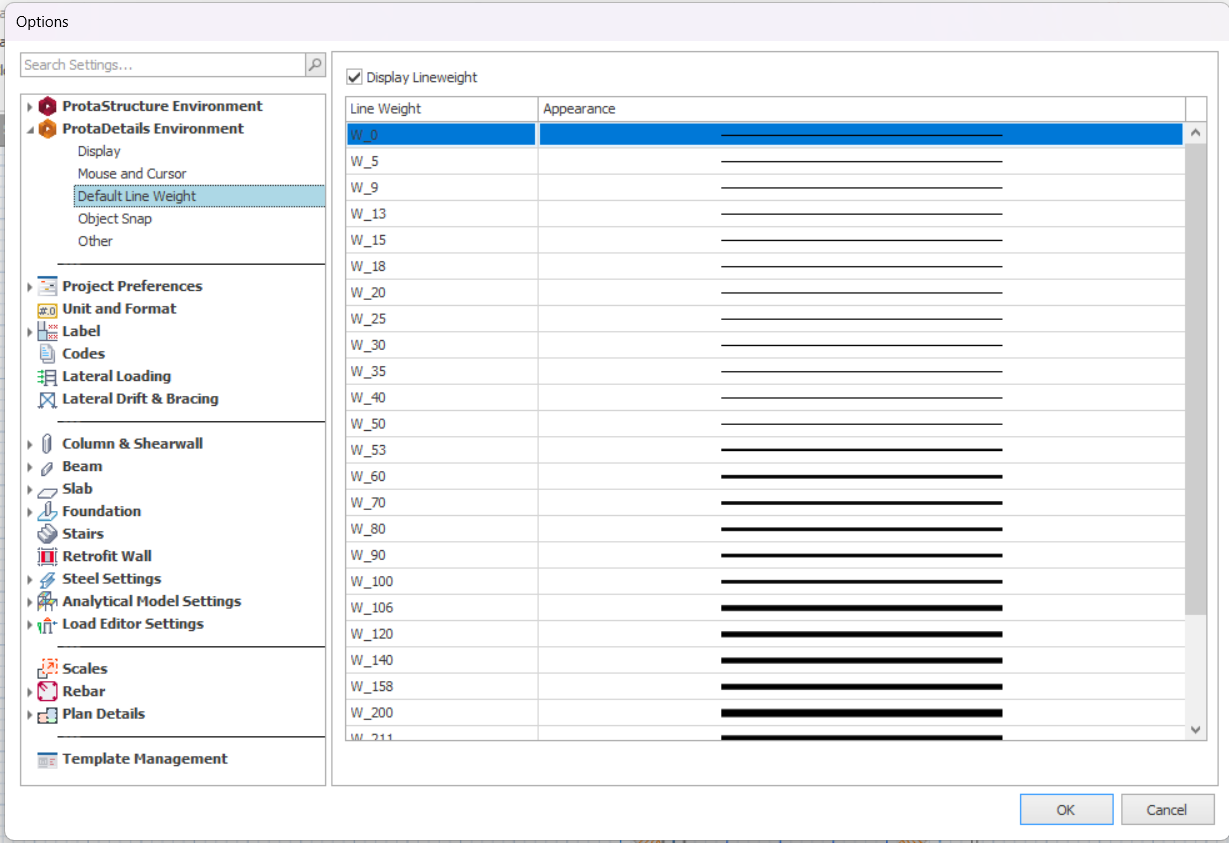
This page controls the line weight settings in ProtaDetails.
User can choose to display or disable lineweight using the provided checkbox.
Object Snap
This page controls object snap setting in ProtaDetails.
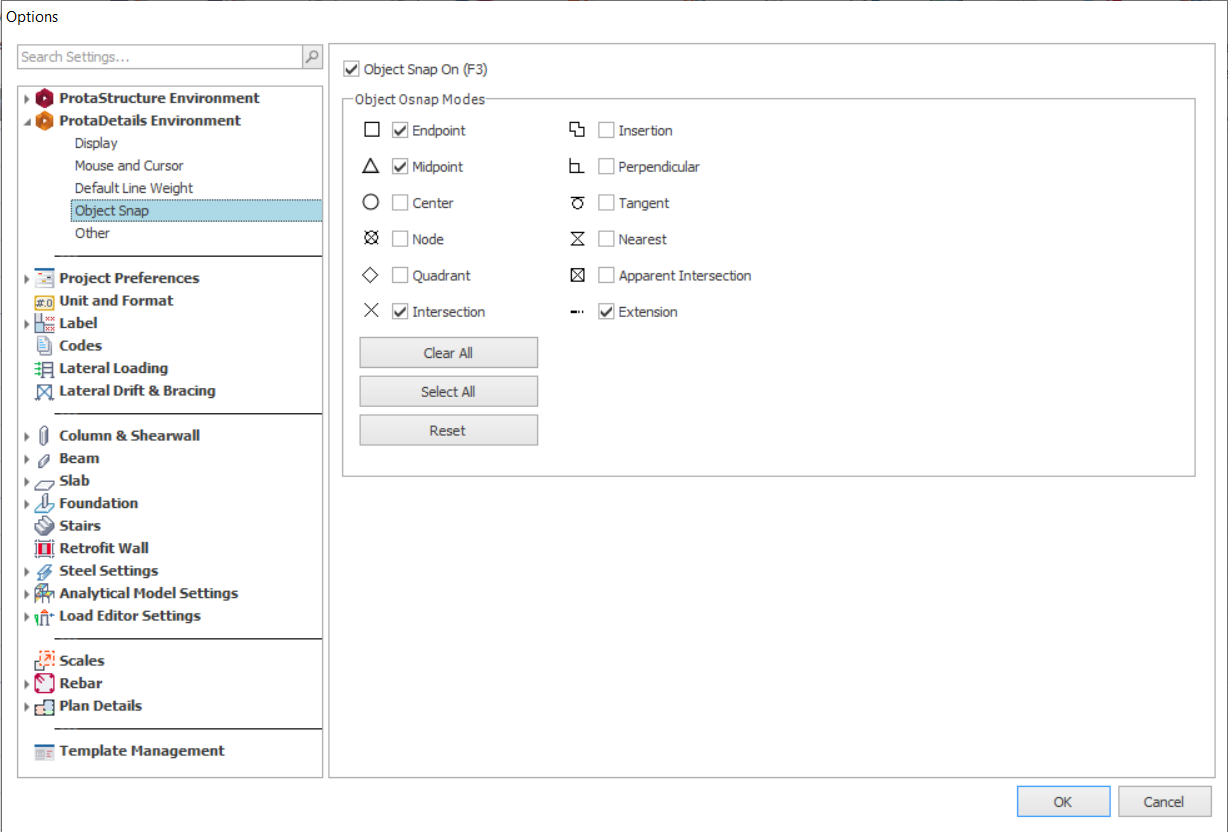
- Object SnapOn (F3) : To enable/disable object snap. F3 is the hotkey to enable/disable object snap.
- Object Osnap Modes : Tick on the modes to allow the points on the objects (ie. Endpoint, Midpoint…) to be displayed.
Other
This page controls the miscellaneous settings in ProtaDetails.
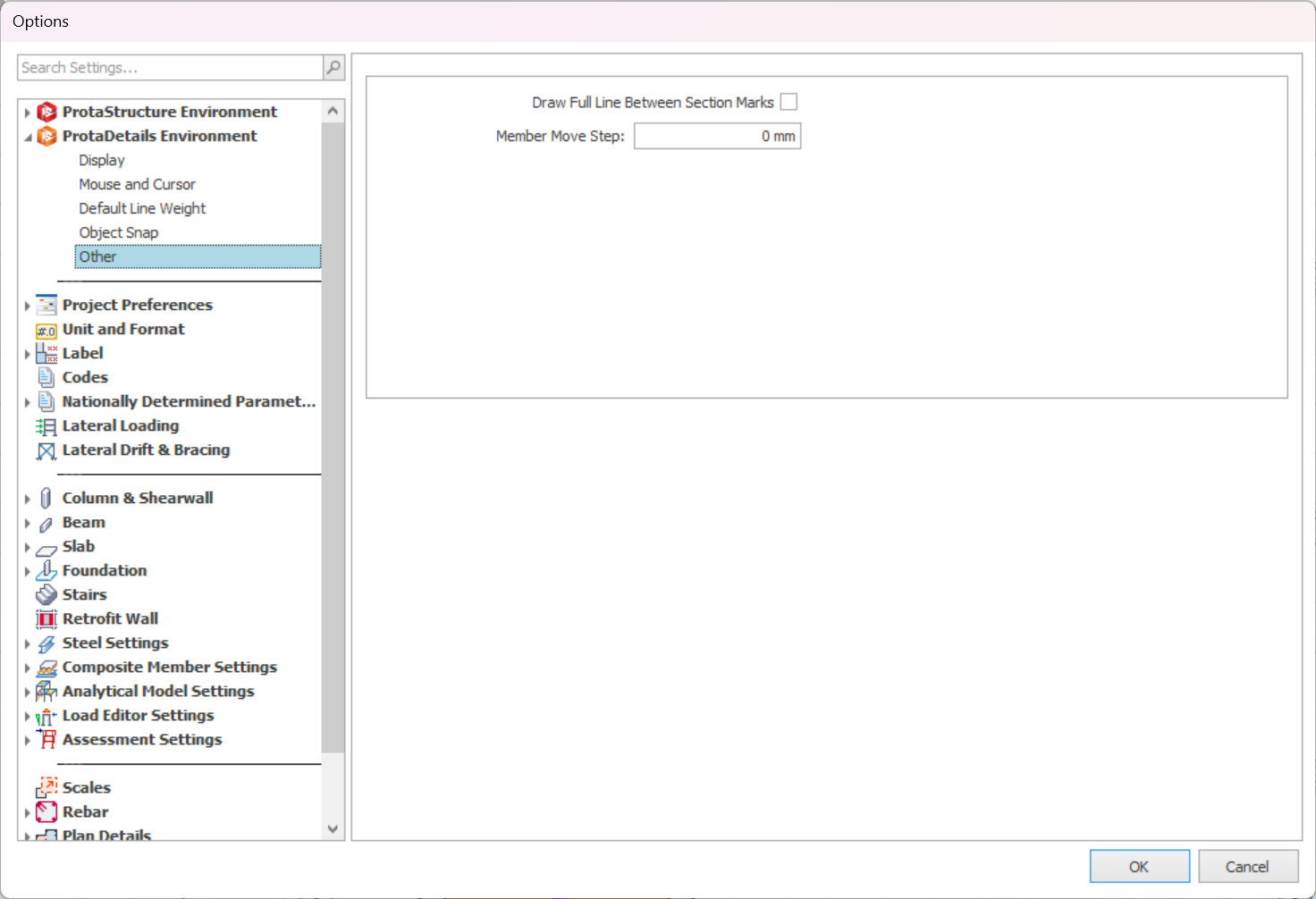
- Draw Full Line Between Section Marks : To enable full line between Section Marks.
- Member Move Steps : Any highlighted objects can be moved using the arrow key (on keyboard) based on the distance input.