


Review Tab
Under the Review tab, there are functions as in the image below:
Re-Label Members
To sort the member labels according to user preference. Refer to this article for more details: Re-label members
Move Members to Axes
To refresh the insertion definitions of members based on related axis positions. Refer to this article for more details: Move Members to Axes
Delete Unused Axes
To delete unused axes in the model, i.e. axes that are not associated with any member.
Fix the Almost-Orthogonal Axes.
Axis created may not be perfectly orthogonal in X or Y direction, i.e. it has a very small decimal in angle, example 89.99 or 0.01 degrees.
This can be fixed by using the function Fix the Almost-Orthogonal Axes (as shown below) :
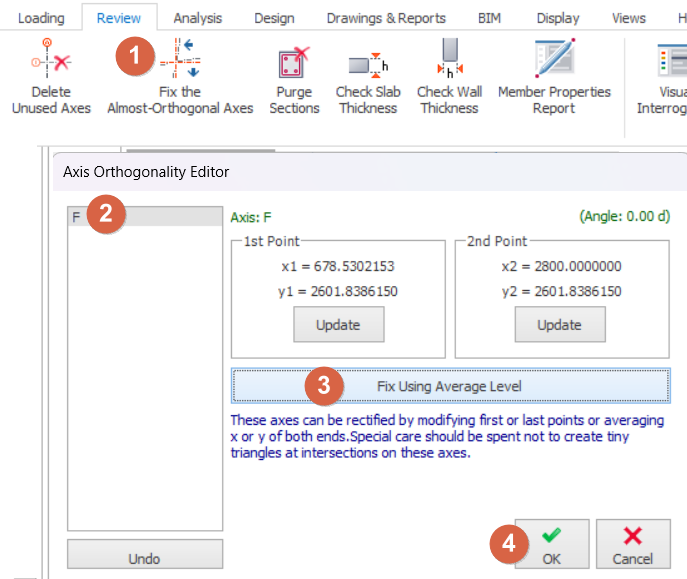
- Click this icon > Axis Orthogonality Editor will appear
- Pick an Axis amongst the list of non-orthogonal axes detected
- Pick Fix Using Average Level > Continue the above steps for the next axis
- Pick OK to exit

Non-orthogonal axes may have averse impact on slab insertion & graphics rendering. It does not really impact on analysis results as the small angles are negligible.
Non-orthogonal axes are likely a result of importing axes from DXF drawings as the drawings created by CAD editor may inherently be drawn non-orthogonally.
As such, we highly recommend users create axes within ProtaStructure to prevent such issues.
Purge Sections
To remove unused section definitions and reduces the project size.
Check Slab Thickness
Check the thickness of the slab members according to the constructive rules in selected code. This icon is only visible for relevant codes that requires this check.
Move the cursor on the icon to reveal tooltip with more information.
Check Wall Thickness
Checks the thickness of the shear wall members according to the constructive rules in selected design code. This icon is only visible for relevant codes that requires this check.
Move the cursor on the icon to reveal tooltip with more information.
Member Properties Report
Provides a report summarizing Member End Release Assignments, Seismic Isolators and Splice Properties of the members.
Move the cursor on the icon to reveal tooltip with more information.