Section Drawings
Plan Section
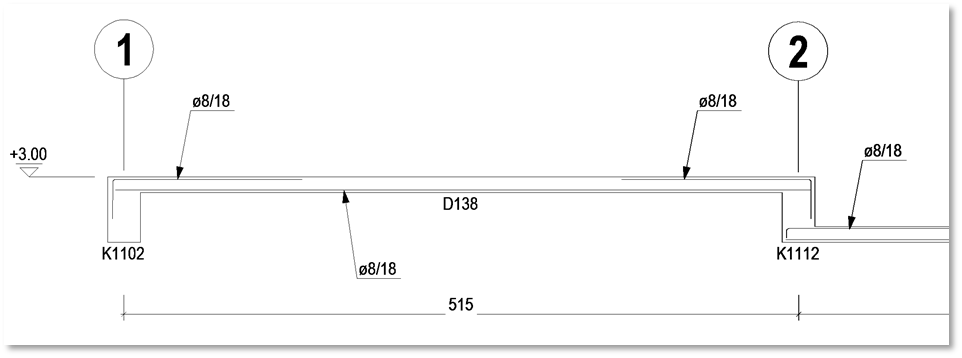
In ProtaDetails, slab section can be generated via Plan Section.
However, please note that ProtaDetails is reflecting the reinforcement information which transferred from ProtaStructure. Hence, design of slab must be done and the project model must be saved prior to creating Plan Section in ProtaDetails. For more details of slab analysis and design in ProtaStructure, please refer to Slab Analysis and Design Procedure.
Navigation
The section view of slabs can be generated by creating a plan section in form plan. The steps are shown in the recorded GIF file below:
Member Labels in Floor Plan Sections
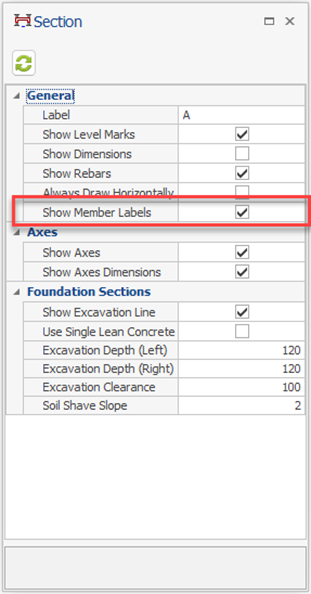
Floor plan sections in ProtaDetails include member labels. Member labels can be turned on or off using the section properties window.
Building Elevation Section
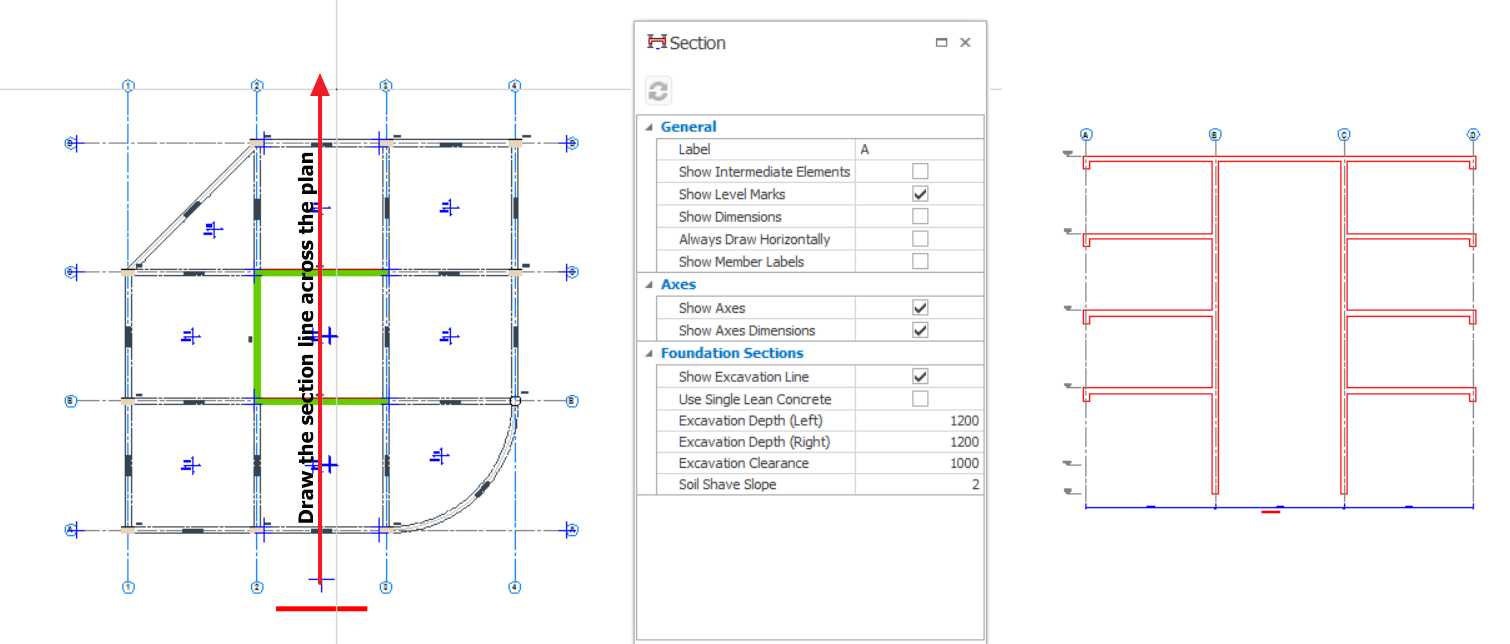
ProtaDetails can also generate the elevation section drawing for the whole building.
To generate a building section:
1. Create a form plan drawing on the screen.
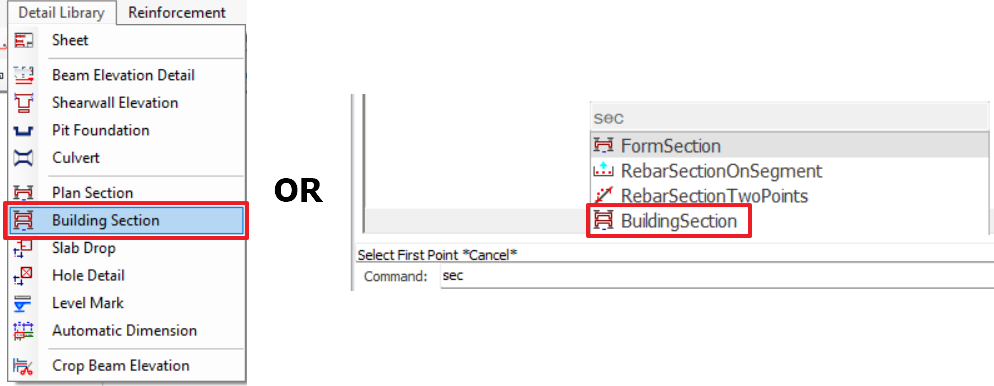
2. Enter Building Section command on the command line or Details Library pulldown menu.
3. The Building Section properties window will be opened. Edit the parameters as required:
a. Label: Assign a label to the section.b. Show Intermediate Elements: Infill walls will be shown on the section if this option is checked.c. Show Level Marks: You can use this to display the level marks on the section.d. Show Dimensions: Additional dimensions will be shown if this option is checked.e. Always Draw Horizontally: The section will always be horizontal if this option is checked.f. Show Member Labels: Structural member labels will be shown next to the members.g. Show Axes: Axis elements will be shown.h. Show Axes Dimensions: Axis dimensions will be drawn.i. Foundation Sections: You can use this group of parameters to adjust the excavation line display.
4. Draw a line across the floor plan where you want to create a section.