Setting Up The Workplane Pste
Model View
In most of the situation, default generated views are not sufficient. User may create additional view from different perspective using “Model View" option under
View (tab).
View (tab).
3D View
User can create a new 3D view directly by selecting " 3D View

" command. Once click, a new 3D view will be created. To adjust the view boundary, user may go to "View Properties" for setting.
Plane View
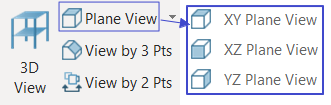
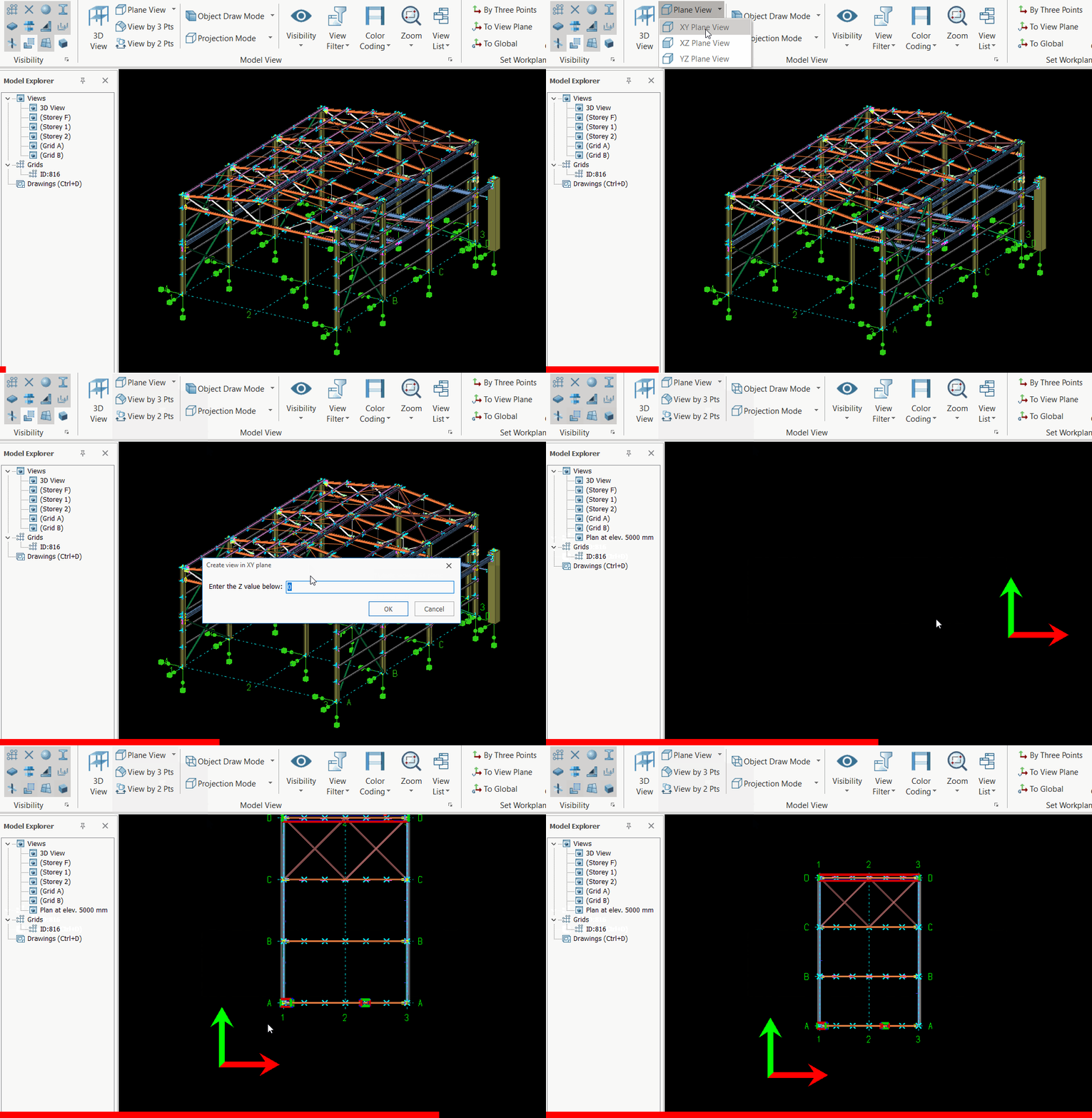
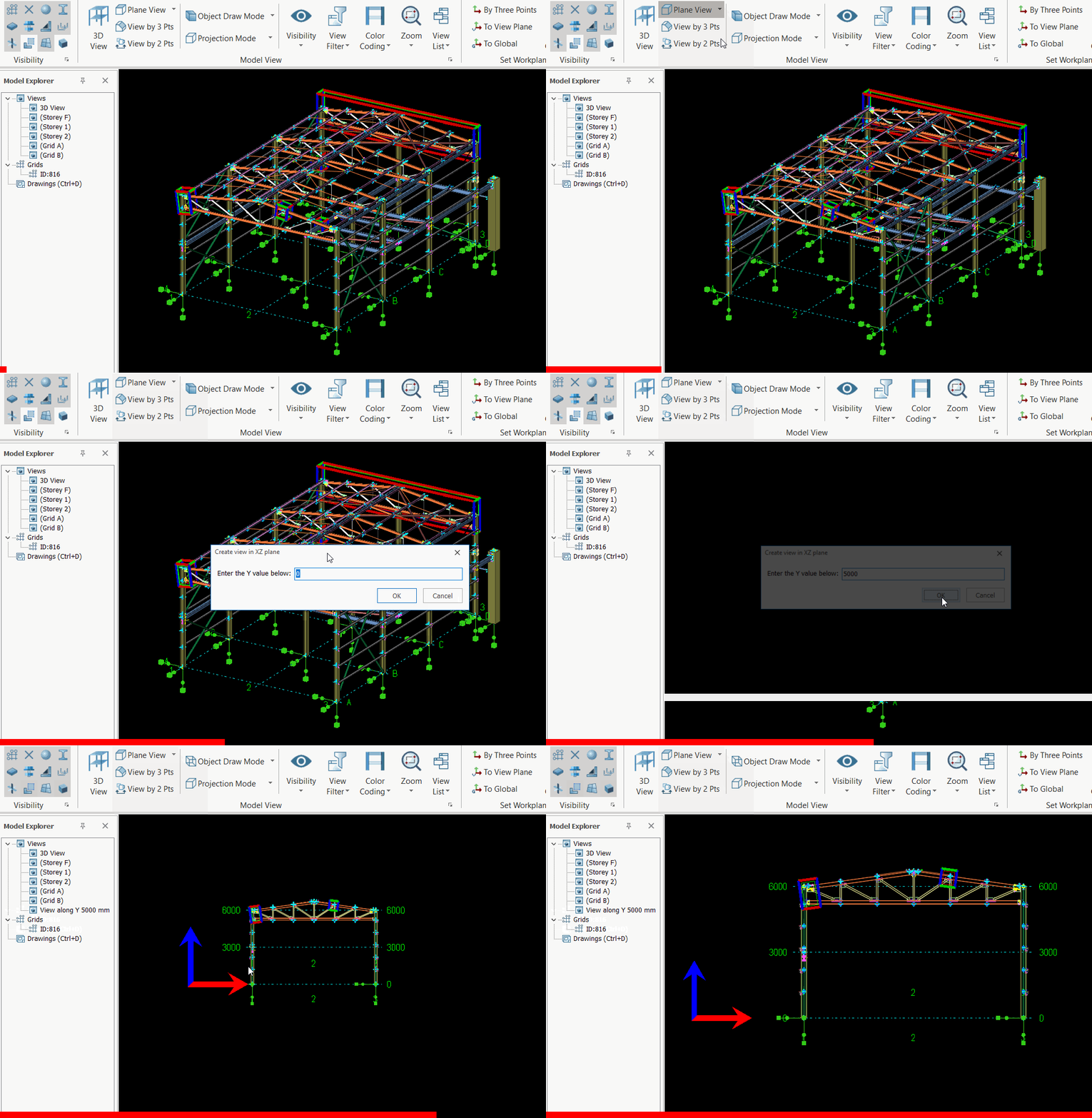
User can quickly create an 2D view directly from any existing view by key in the distance from the origin using these 3 options:
- XY Plane View
- XZ Plane View
- YZ Plane View
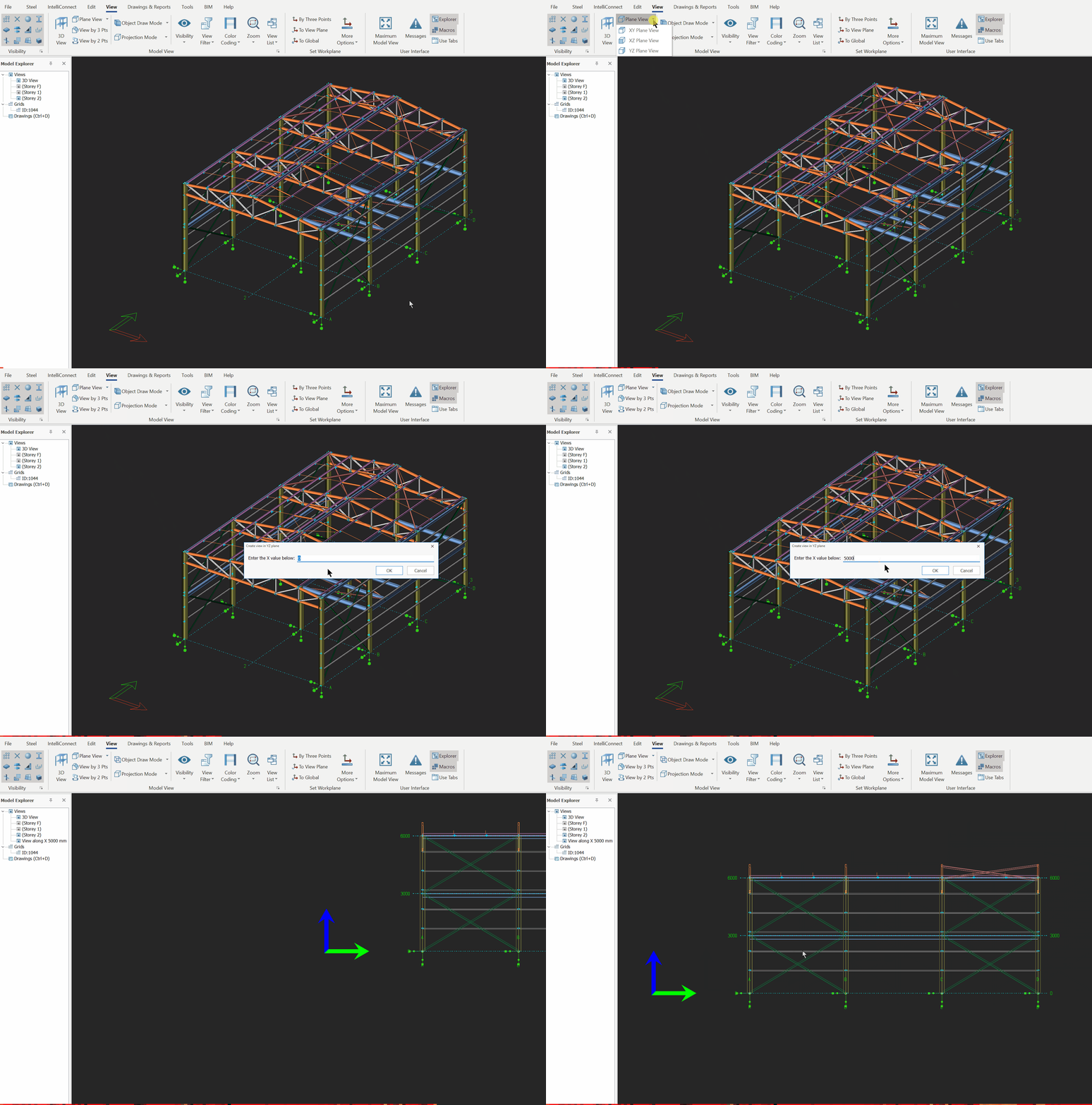
Create View by 2 points 
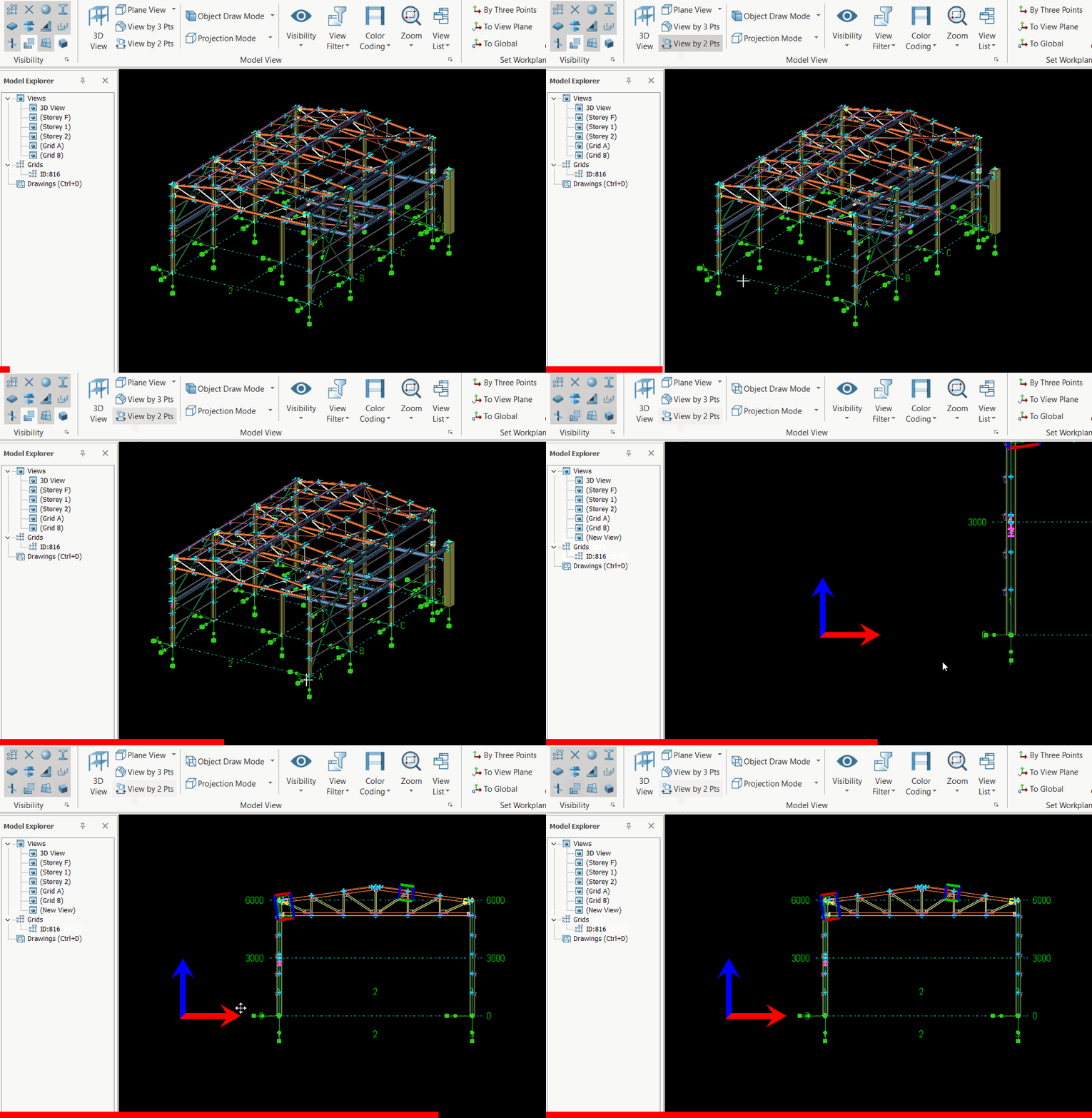
User can quickly create an elevation view directly from any existing view by selecting specific nodes :
- Go to View (tab) > View by 2 Pts
- Pick Point 1 & Pick Point 2
- A new sectional view will be created
Create View by 3 points 
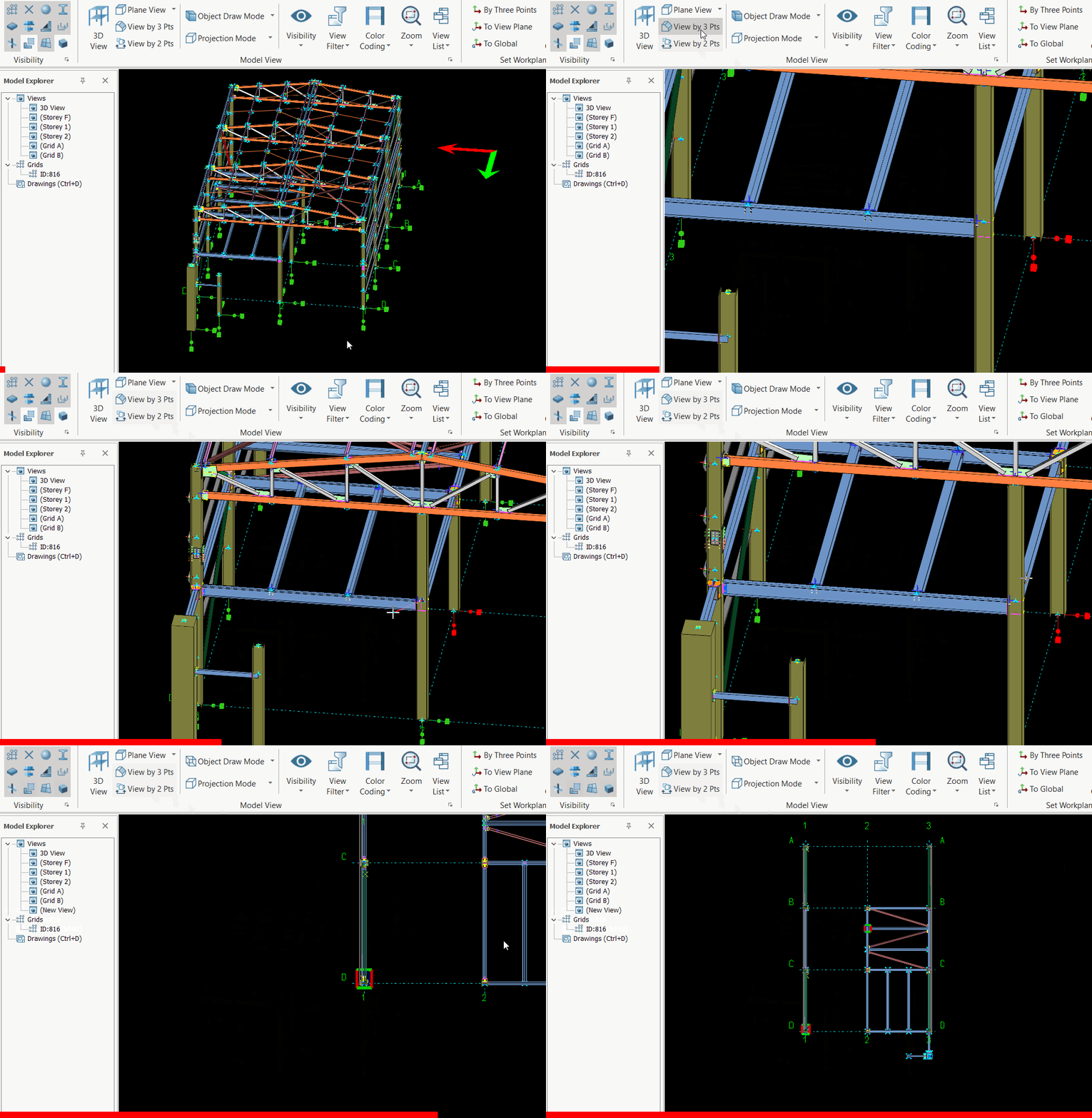
User can quickly create a 2D plan or elevation view directly from any existing view :
- Go to View (tab) > View by 3 Pts
- Pick Point 1, Point 2 & Point 3

If point 3 picked vertically from Point 1, then elevation view will be created, whereas point 3 picked horizontally from Point 1, then plan view will be created.
- A new view will be created
Set Workplane
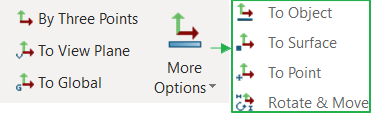
Since many commands in ProtaSteel depend on a coordinate system to work, you should set an appropriate coordinate system. By default World Coordinate System is the active work plane. To learn more about coordinate systems and workplanes read
Overview of Coordinate System & Workplane Concept.
Overview of Coordinate System & Workplane Concept.
Set Active Workplane to a View’s Original Work Plane
To set the active workplane to a View’s Coordinate System (VCS) use the Set Current Workplane  command on that view’s Toolbar Tab.
Set Active Workplane to Global Coordinate System
To set the active workplane to World Coordinate System (WCS) use the Set Workplane to Global  command on a view’s Toolbar Tab.
User Coordinate System (UCS)
In addition to WCS and VCS, users can define single coordinate system which is independent of views or WCS. This is called User Coordinate System.

User can not create multiple User Defined Coordinate systems at a moment. In other words, when the user creates another user defined coordinate system, the previous user defined coordinate system is replaced with the new one.
Create a User Defined Workplane
An user defined workplane can be created as follows:
- Click the
Set Coordinate System by 3 Points
from View (Tab) > "Set Workplane" toolbar group.
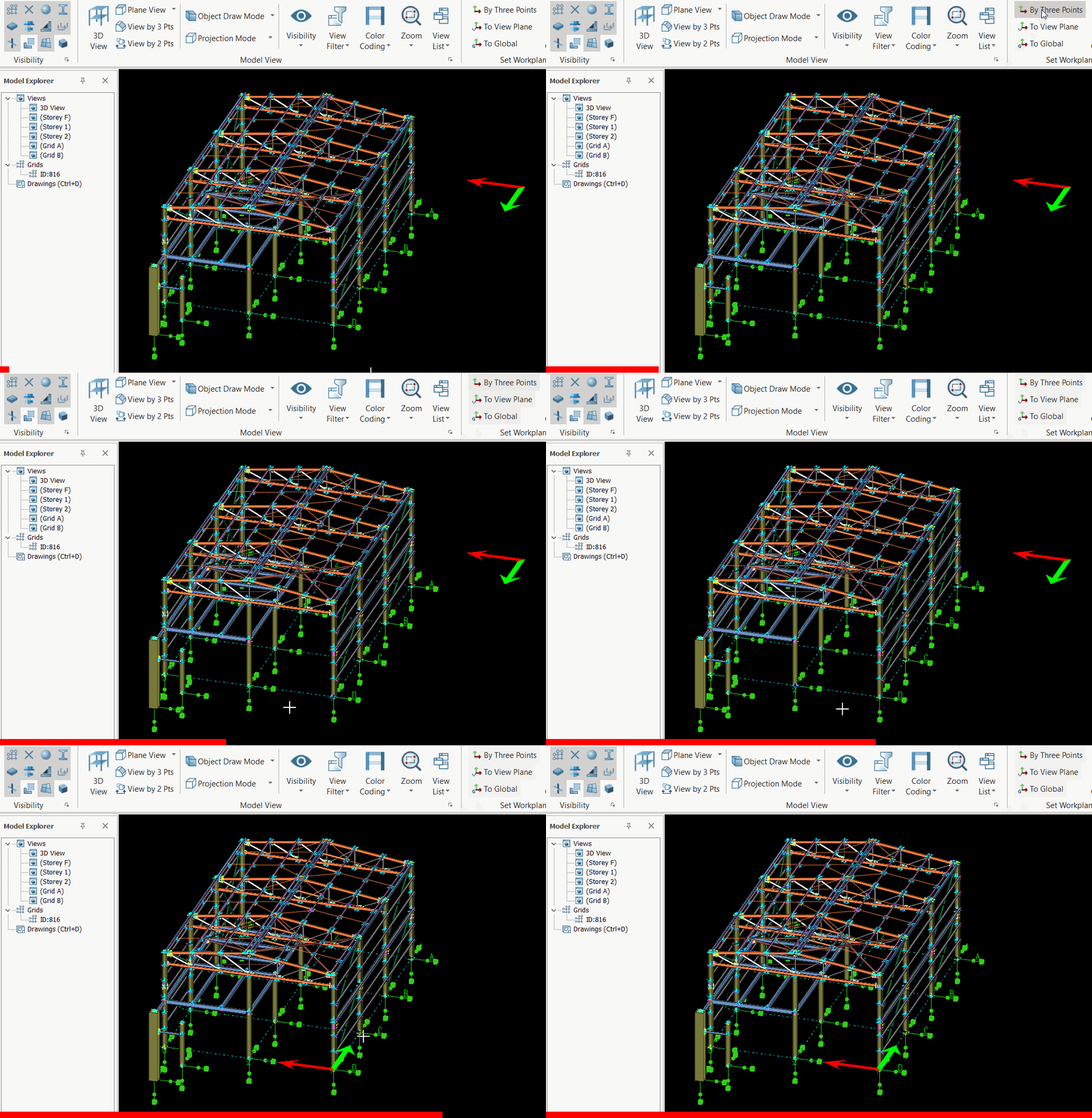
- Select the first point (P1). This point becomes the origin point of the new coordinate system.
- Select the second point (P2). Note that as you move the cursor, a red arrow is displayed from first point to the cursor which indicates the X-axis of the new coordinate system.
- Select the third point (P3). A green arrow is displayed before picking third point. This green arrow indicates an auxiliary vector in the XY plane of the new coordinate system.