Show Hide Selected Members
Sometimes, when the model is too crowded, it may not be easy to concentrate on the portion of the structure that you want to work on. A truss or purlin might get between the camera and the object of interest.
To help with this, users can use “Show/Hide Selected Members” functionality to show/hide certain members:
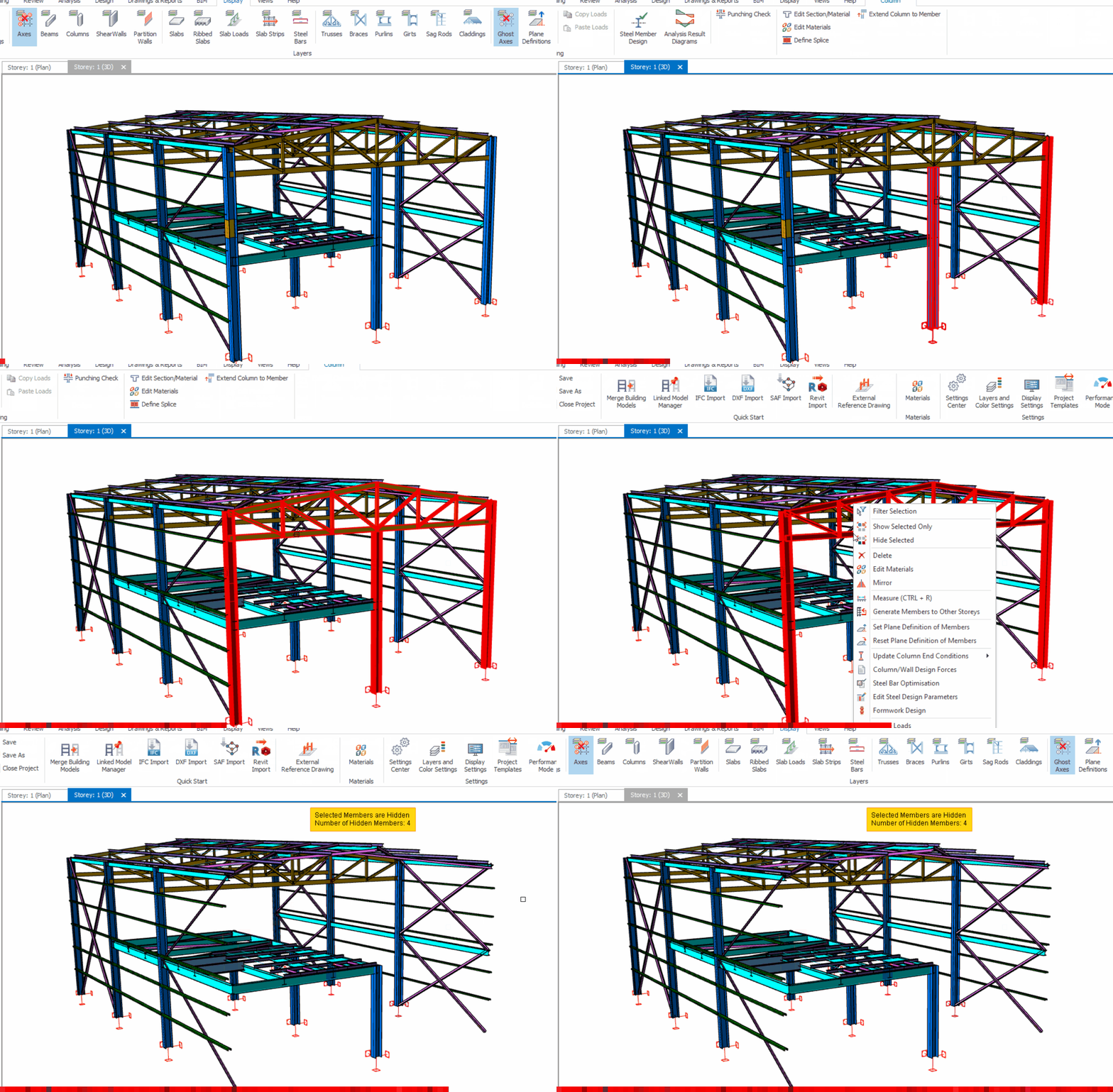
- Select the members you want on the plan or 3D view and right-click.
- Use the “Hide Selected” command to hide the selected objects from the view. A “yellow box” at the top of the screen will give you information on the number of hidden members.
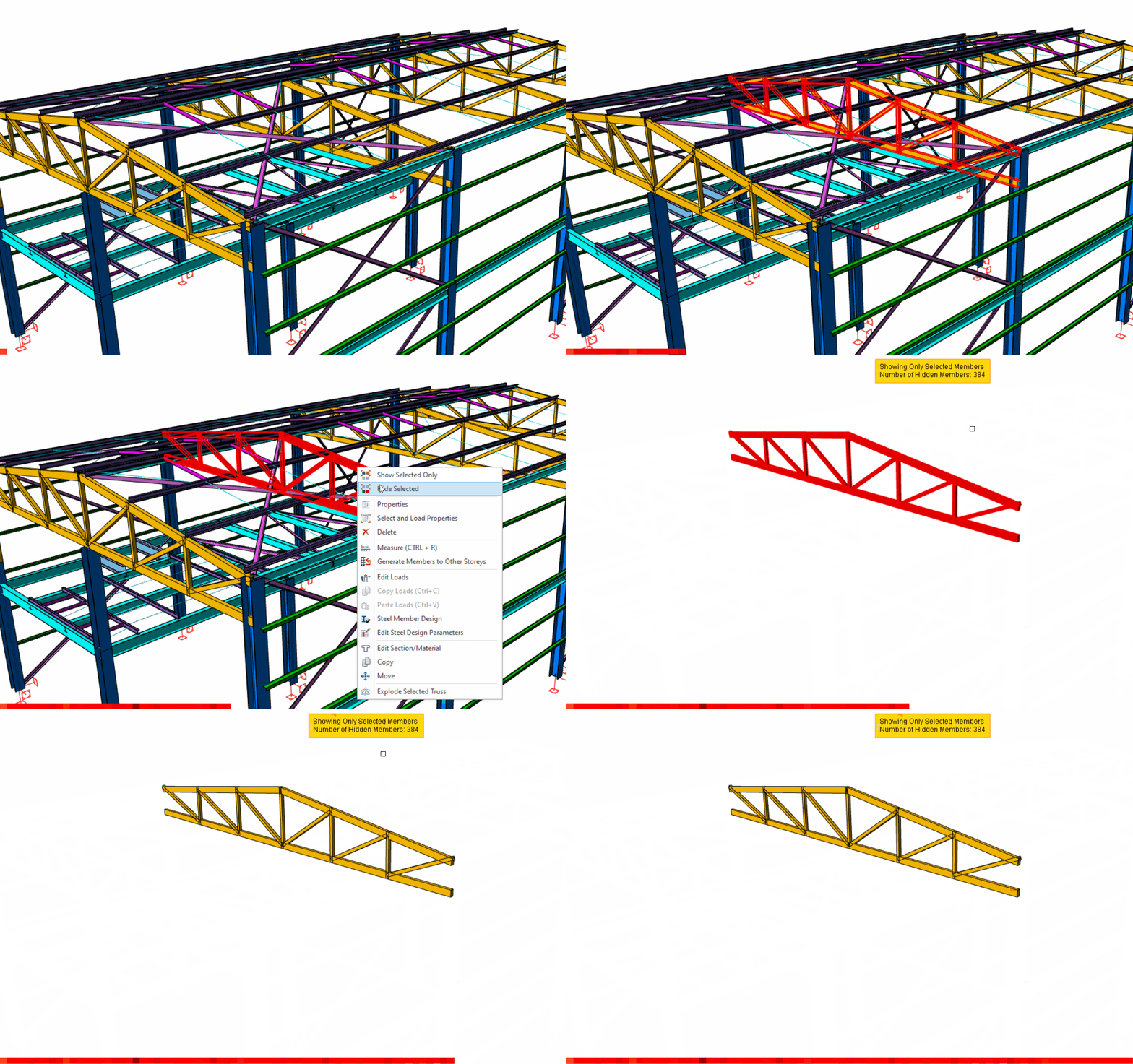
- Alternatively, if you want to see only the selected members on the view, use the “Show Selected Only” command. Again, a yellow box will notify you of the hidden members.
- If you want to see all the members and unhide the hidden ones, use the “Show All” command.