

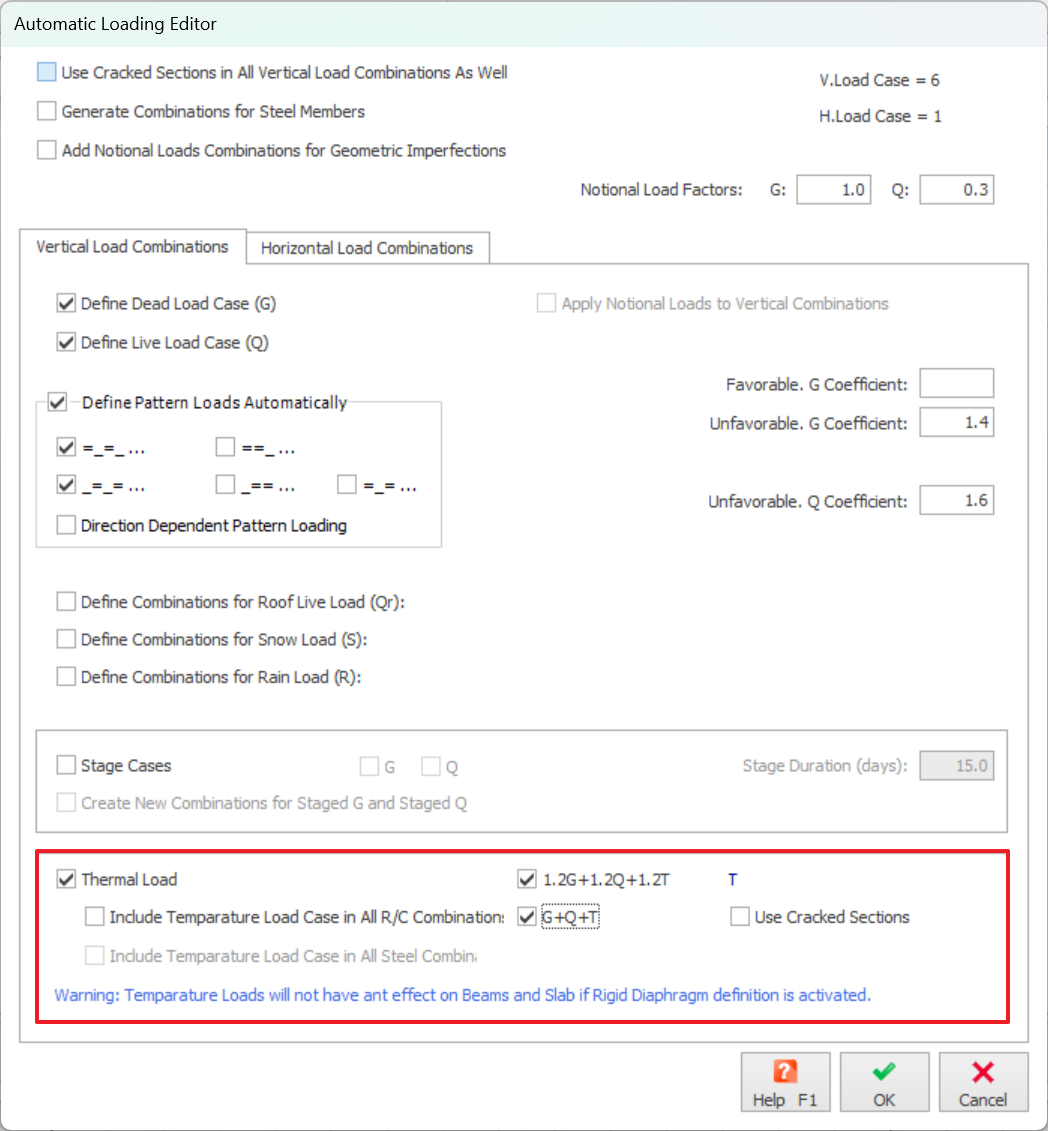
Temperature Loads
| Define Thermal Load | User-defined temperature differences can be assigned to individual, or multiple columns, walls and beams in the model. An “Axial” temperature load causes the entire member to change in temperature by the specified amount. The value entered should be difference of temperature. A “Gradient” temperature load is a change in temperature across the width/depth of the member. NOTE: The currently specified load combination must include a Thermal load case in order to apply a temperature load. |
To use this function, the user must ensure that the "Temperature Loading" option is checked in the "Automatic Loading Generator". This ensures the program to include the thermal loads within the load combination. If this option is not checked, then a warning will pop up to prompt the user to assign temperature loads to the load combinations.
To define temperature loads for column/wall/beam members:
- Select
the members you want to assign the load to. - Select
the “Thermal Loads (Batch) ” option located in "Loading" pull
down menu.
- The
“ Thermal Load (Batch) " dialog will be loaded. - Select
a Thermal load case from the “Load Case” list.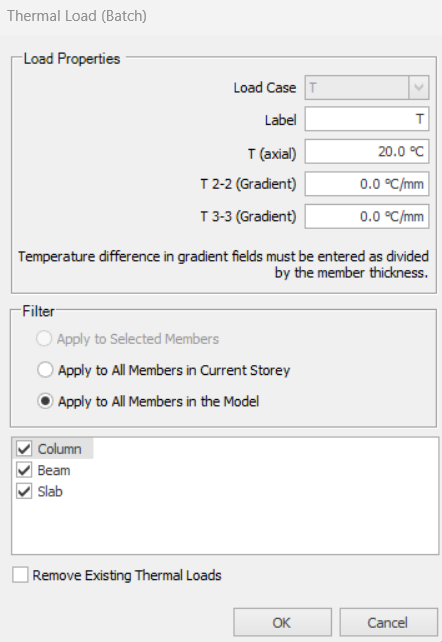
- Define
the required axial or gradient temperature difference and choose the
member types to which it is to be applied.

For T (axial), a positive value denotes a rise above ambient
temperature; a negative value denotes a fall.
temperature; a negative value denotes a fall.
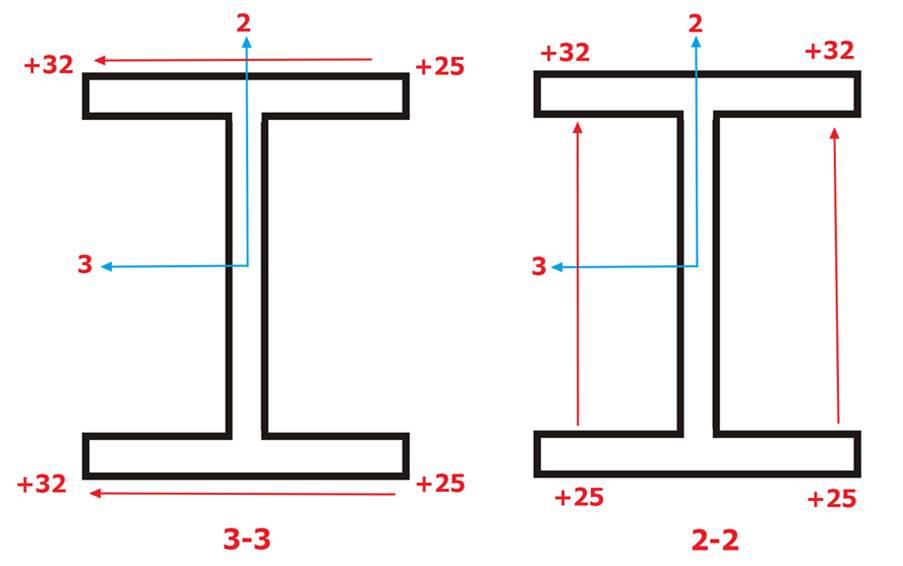
For Gradient, 2-2 denotes the major axis while 3-3 denotes
the minor axis
the minor axis
- The
temperature difference will be assigned only to selected members if you
press “ Apply to Selected Members ” button. - All
members in the current storey will be assigned the same temperature
difference, if “ Apply to All Members in the Current Storey ”
option is selected. - “ Apply
to All Members in the Model ” enables all members in the system
to possess the same temperature difference. - Close
the form by pressing the “ OK ” button. The entered
values will be assigned as temperature loads. To check whether there is a
temperature load defined on a member, hover on the element with the mouse.
The “Member Tooltip Window ” will include the
thermal load information as well.
To modify or delete the temperature loads on Column(s) Wall(s) or Beam(s);
- Select the related column/wall/beam and load the “ Temperature Load ” form again as described above.
- Select the load case from the “Load Case” list. By entering a different value into the related fields (T(axial), T 2-2(Gradient) or T 3-3(Gradient)), you will have modified the load. Entering a zero, will delete the load. In order for the changes to be valid, just press “OK” button without switching to a different load case .

Perform the delete/modify operation just for a single load case at a time.

When performing the Building Analysis, please ensure that the "No Rigid Diaphragm Floor Levels" option is checked. This is done under the "Slab Model" tab in the "Model Options" of the "Building Analysis" dialog.