


Visibility Settings And Selectability Settings
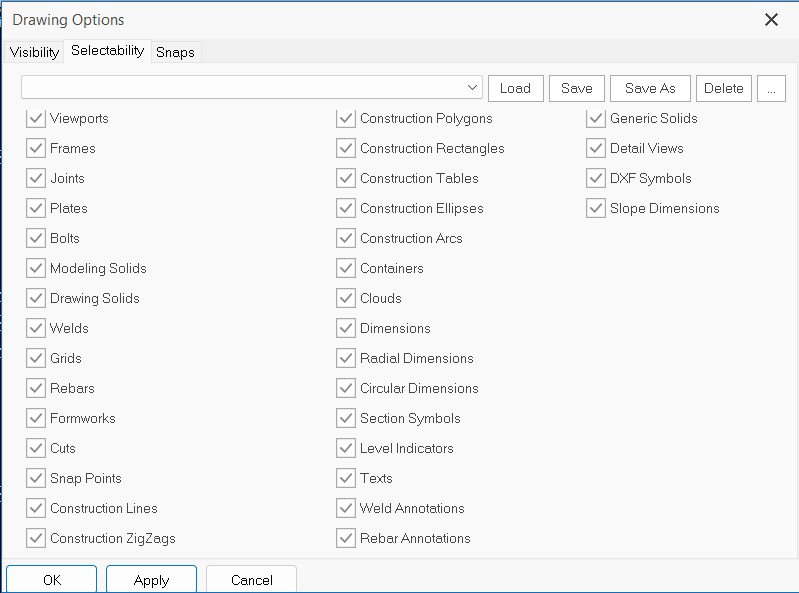
Visibility settings allows user to show and hide elements that wish to hide/show in the drawings, while selectability settings allows user to lock the elements and prevent from misclick or accidentally deleting the elements.
Both Visibility and Selectability settings can be found in Edit tab in the Drawing Module.
Visibility Settings
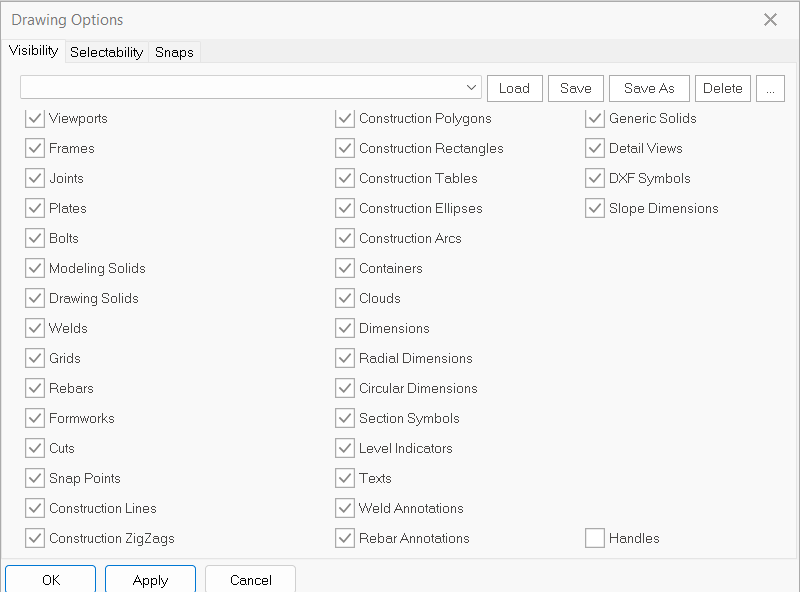
By default, all elements will be ticked. If any element is unticked, when user click on "OK", the "hide" effect will immediately applies to the unticked elements in the drawing.
Grid Level Visibility
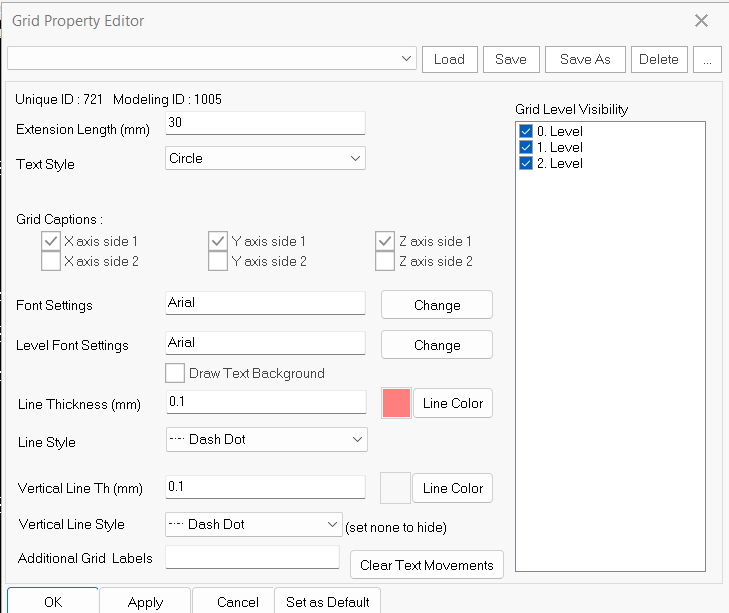
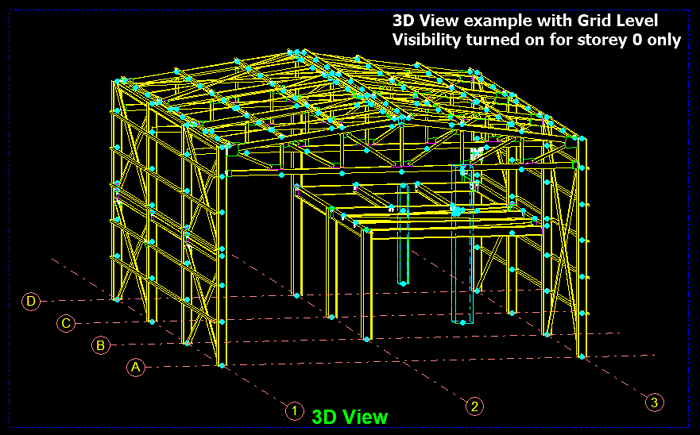
In order to show only grid line in single storey instead of showing/hiding all the grids, user can adjust using the Grid Level Visibility. (This is useful especially when creating 3D view.)
Double click on the grid lines to open Grid Property Editor and Grid Level Visibility can be found at the right hand side. Untick the level to hide.
Selectability Settings
By default, all elements will be ticked. If any element is unticked, the unticked element will not able to select in the drawing after user click on "OK".
Snap Settings
Snap is an assisting tool to provide user with the ability to specify precise location/point in the drawing whenever mouse is hover to the certain spots. Example, if user is trying to pick a start point in order to drawing on the center of a circle, middle of a line or drawing on an intersection of gridline, these can be done using Snap to locate the starting point. Under the Edit tab, go to Object Snap.
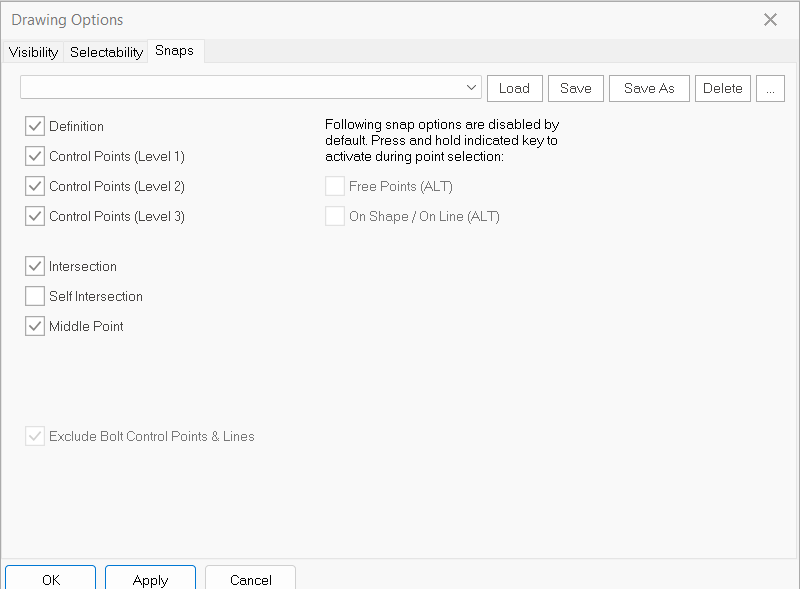
- Definition – To allow user to snap on:
- intersection of gridline (on the same level),
- center of a member,
- start end point of frames,
- corner points of plate
- center point of bolts.
- Control Points – To allow user to snap edge of elements.
- Level 1 – 3D points of plate, frames and solids
- Level 2 – snap on bolts related items (Quad points of bolts and start end point of bolt center line.)
- Level 3 – does not have any effect in point selection at the moment.
- Intersection – To allow user to snap on intersection member to member or grid to member (except for gridline to gridline).
- Self Intersection – To allow user to snap on intersection of gridline regardless of storey level.
- Middle Point – To allow user to snap on midpoint of elements/lines.