


Zooming And Panning

Re-generates all drawing entities using stored geometry information.

- If toggled, the model rotates around the cursor’s current location.
- If untoggled, model rotates around the model center.
- alternatively, hit "F9" on the keyboard to change the rotation center.



You can quickly zoom in on an area by picking the opposite corners of the zoom window that defines it.
After selecting the "Zoom Window" option, specify the opposite corners of the zoom window in the drawing area by dragging two points.
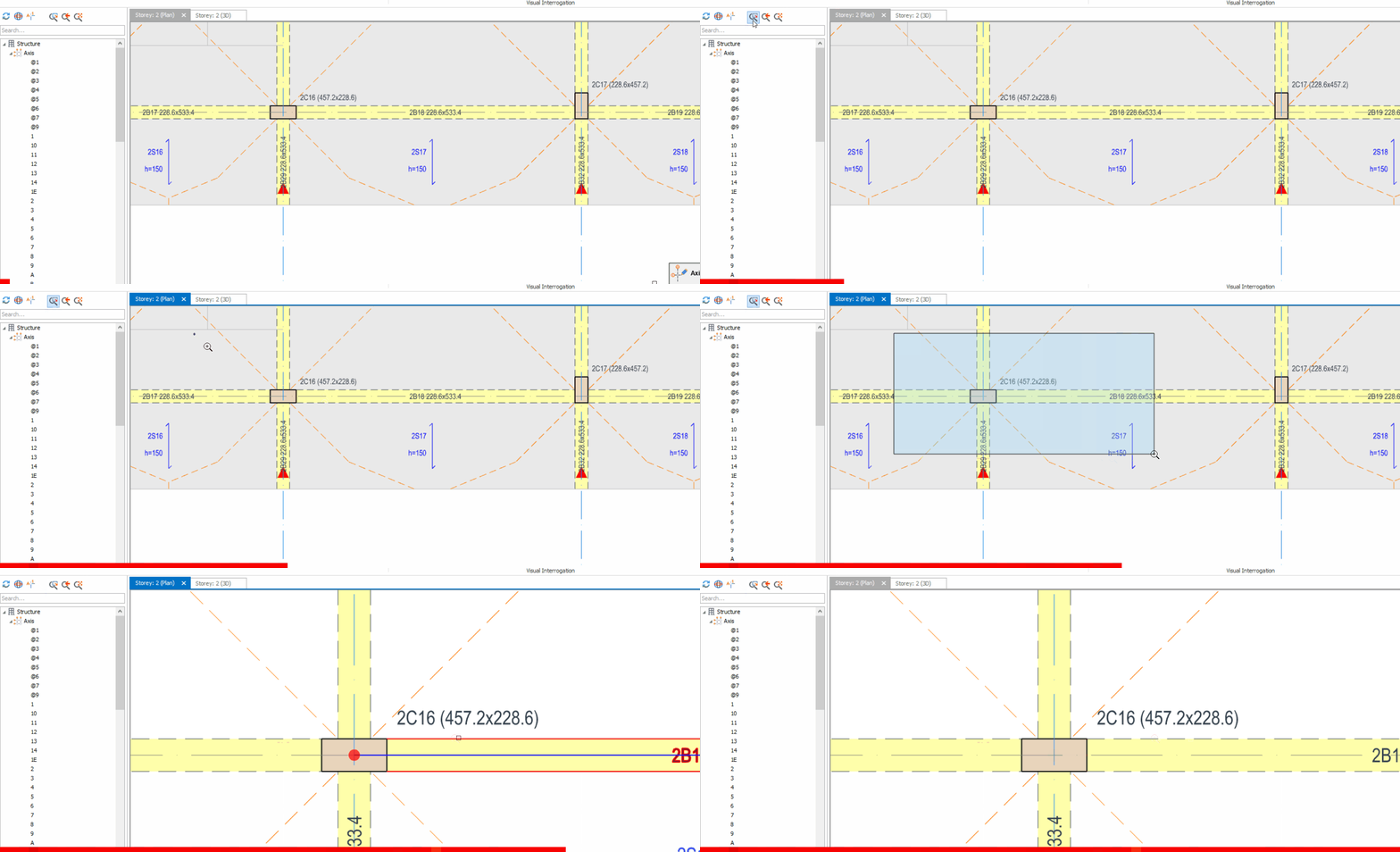
All zoom operations are stored. So, anytime, a previous display can be recalled using the "Zoom Previous" option.
"Zoom Extents" displays a view that includes all selected objects at the highest magnification that will fit in the drawing area. If nothing is selected, it zooms to fit for the entire building.
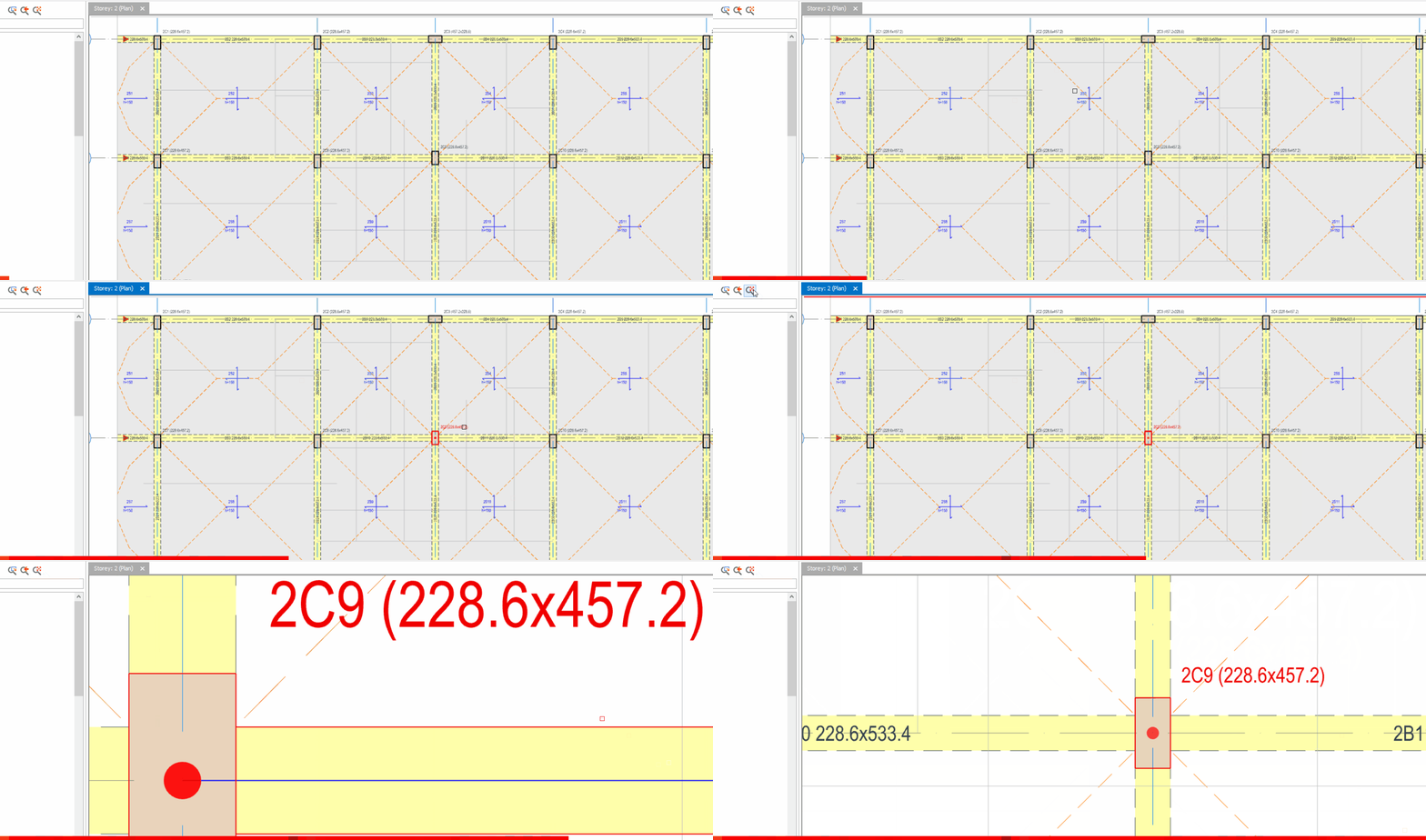
"Zoom In" increases the magnification of the current view by 20% and "Zoom Out" decreases the magnification by a similar amount. This option can be used to quickly zoom in and out to the center of the current view.
“Zoom In” and "Zoom Out" functionalities are assigned to the mouse wheel. If you rotate mouse wheel forward you can zoom-in and if you rotate mouse wheel backward you can zoom-out the active view. If the 3D Windows are visible, the wheel will control the window that has the focus.
After selecting the "Pan" option, you can pan the drawing image to a new location by dragging two points that defines the pan direction and amount.
“Pan” functionality is assigned to the middle mouse button. If you press and drag the middle mouse button (wheel button in IntelliMouse) you can pan the plan and 3D windows.